Renovation and cleaning work
Show a room, garden or car before and after the job.
 I Build Elementor.
Show a before and an after image in one frame with a divider visitors drag, tap or move with the keyboard to compare them.
These are the actual published outputs of the widget with a pencil sketch and the finished watercolour of the same valley: the default slider, a styled version, one without tags, and what happens when an image is missing.
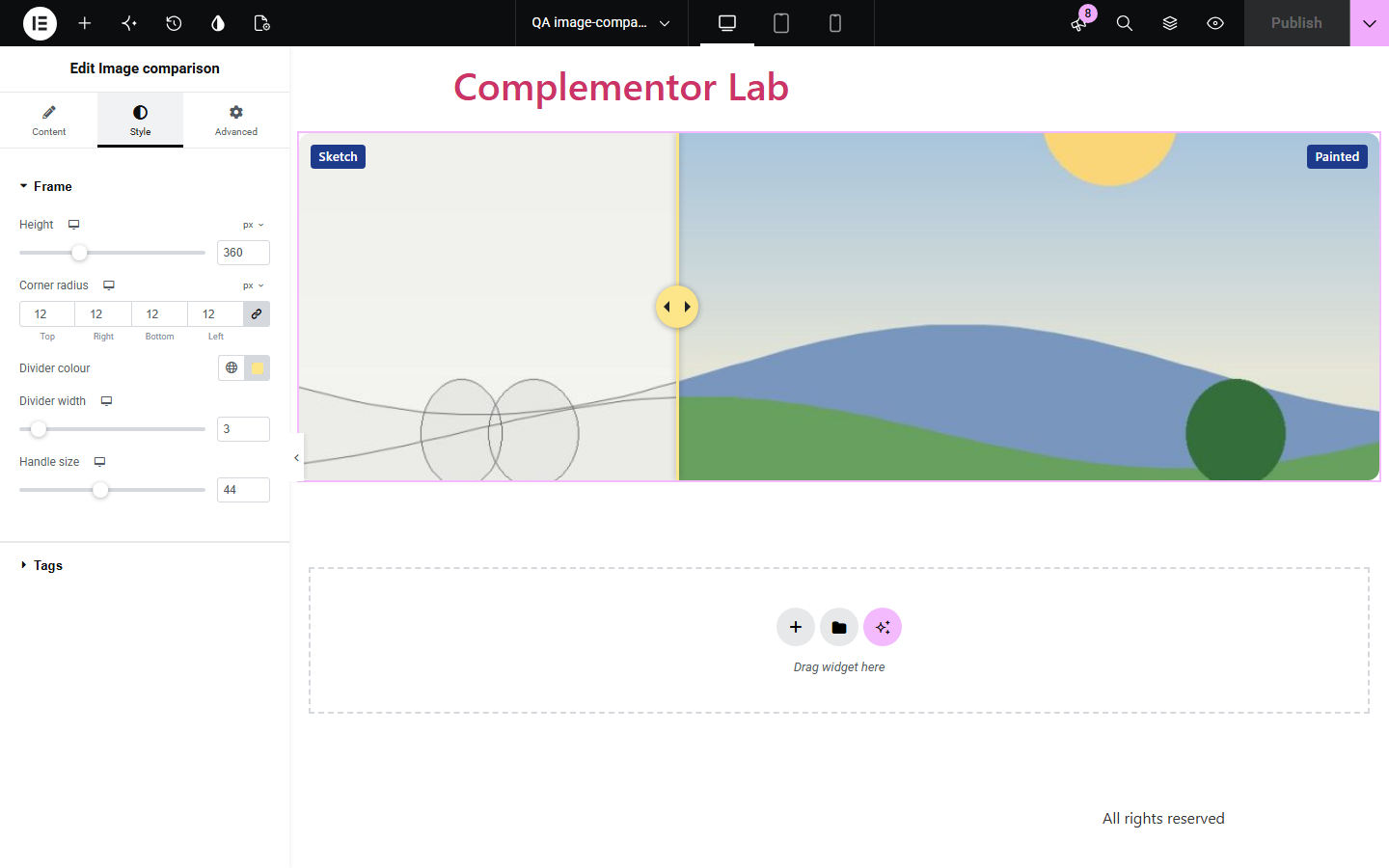
Content › Images picks the before and after images from the Media Library with an image size and optional alt text for each, and sets the editor prompt. Behaviour sets the starting position and the slider's spoken name. Labels turns the Before and After tags on or off and sets their text. The Style tab covers the frame height and corner radius, the divider colour and width, the handle size, and the tag colours and typography.
Renovations, retouching, treatments and drafts are easiest to judge side by side, but two separate images make visitors flick back and forth. Image comparison stacks your before and after images in one frame with a divider that visitors drag, tap or move with the arrow keys, and keeps proper alt text for both images.
Show a room, garden or car before and after the job.
Let clients compare the original and the edited photo.
Reveal a finished piece over its sketch or draft.
Start with Complementor installed and your license connected. Enable this module in the WordPress library, then configure it in Elementor.
Install Complementor, connect your license and enable Image comparison in the Complementor library.
Add the widget and choose a before image and an after image of the same size and framing.
Check each image's alt text, or type a description for this comparison.
Set the starting position and the tag texts.
Style the frame and divider, publish, and drag the divider to check both images line up.
Configure the settings available for this module to suit the page you are building.
Two Media Library images with image sizes and responsive srcset.
Drag or tap anywhere on the image; arrow, Page, Home and End keys move the divider.
Starting position and a spoken position such as Before 35%, After 65%.
Before and After tags with your own text, or no tags.
Alt text from the Media Library or your own for each image.
Style: frame height and radius, divider colour and width, handle size, tag colours and typography.
Compare the existing Elementor workflow with this Complementor module before choosing your setup.
Two separate images take twice the space and make small differences hard to see. The slider keeps both in one frame.
Other before and after widgets exist in paid add-ons. This one works with free Elementor and is keyboard and screen reader friendly.
Complementor uses classic Elementor APIs. Atomic-native controls are not implemented. Check your theme, cache and integrations on a staging site before release.
Check these settings if the published page behaves differently from the editor.
Use images with the same size and framing. Both are cropped to fill the frame, so different shapes crop differently.
One of the two images is missing. The editor shows a prompt until both are chosen.
They fill the frame height you set. Increase the height or use a vh value to show more of each image.
Yes. Vertical swipes scroll the page; sideways drags move the divider.
No. It works with the free version of Elementor.
Yes. The divider is a native slider with a spoken name and position, both images keep their alt text, and focus is shown on the handle.
Yes. Drag or tap anywhere on the image to move the divider.
Yes. Set Starting position from 0 to 100 percent.
It uses the image size you choose and the browser picks the best size from the srcset.
This module is included with all 1007 current Complementor solutions. Choose your production website allowance; every plan includes the same modules.
Renews at $29 USD each year.
Renews at $49 USD each year.
Renews at $99 USD each year.
Applicable taxes extra. Annual subscriptions renew automatically unless canceled in your customer account. Elementor Pro is required for Exclude current post. Read the terms and 14-day technical-issue refund policy.