Technical articles
Explain acronyms such as API or gsm without breaking the reading flow.
 I Build Elementor.
Underline a term and let readers click or tap it to see a short explanation in a small popover, on desktop and touch screens.
These are the actual published outputs of the widget: the default API example, a teal term with an icon and a light popover, and a bold term with a solid underline. Click a term to open it.
Content sets the term and its plain-text explanation. Display adds an optional icon. The Style tab covers the term's underline (dotted, solid or none), typography, colours, Normal, Hover and Focus states, border, radius and padding, the icon colour, size and gap, and the popover's typography, text and background colours, border, radius, padding and maximum width.
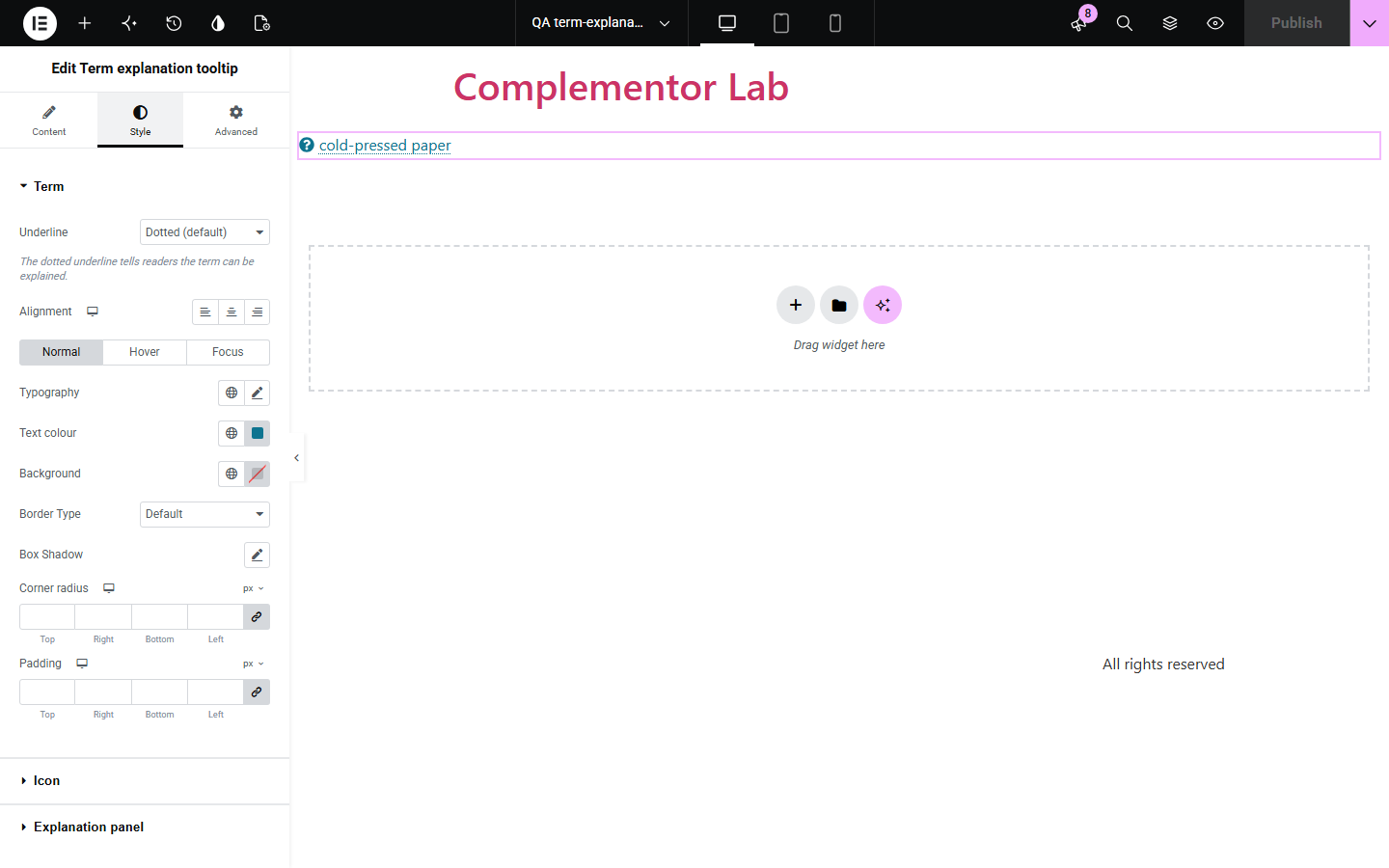
Technical words and jargon lose readers who do not know them, and hover-only tooltips do nothing on phones or for keyboard users. Term explanation tooltip shows a term with a dotted underline that opens a short plain-text explanation when clicked or tapped, closes with Escape or a click elsewhere, and is announced to screen readers.
Explain acronyms such as API or gsm without breaking the reading flow.
Clarify a material, size or specification next to where it is mentioned.
Define new words for learners right where they meet them.
Start with Complementor installed and your license connected. Enable this module in the WordPress library, then configure it in Elementor.
Install Complementor, connect your license and enable Term explanation tooltip in the Complementor library.
Add the widget where the term should appear.
Enter the term and a short explanation in plain text.
Choose the underline and, if you like, an icon.
Style the popover, publish, and click the term to check it.
Configure the settings available for this module to suit the page you are building.
A term that opens its explanation on click or tap, not only on hover.
One explanation open at a time; Escape or a click elsewhere closes it.
Plain-text explanation, also read out as the term's description.
Dotted, solid or no underline, and an optional icon.
Popover that stays on screen on narrow phones.
Style: term typography, colours and states, icon, and popover colours, border, radius, padding and width.
Compare the existing Elementor workflow with this Complementor module before choosing your setup.
A title attribute shows on mouse hover only and not on phones or by keyboard. This widget opens on click, tap and keyboard.
A separate glossary sends readers away. This widget keeps the explanation on the page.
Complementor uses classic Elementor APIs. Atomic-native controls are not implemented. Check your theme, cache and integrations on a staging site before release.
Check these settings if the published page behaves differently from the editor.
The explanation is empty, so the term is shown as plain text instead of a button that opens nothing.
A parent container has overflow hidden. Set its overflow to visible, or place the widget outside that container.
No. The explanation is plain text so the popover stays simple to use by keyboard and screen reader.
Hover does not work on phones or for keyboard users, so it opens on click and tap for everyone.
No. It works with the free version of Elementor.
Yes. The term is a real button with an expanded state, the explanation is its description, Escape closes it and returns focus.
Yes. The explanation is shown as a short note under the term.
Yes. Opening one closes any other that is open.
Each widget is its own element, so it sits on its own line in Elementor layouts.
This module is included with all 1007 current Complementor solutions. Choose your production website allowance; every plan includes the same modules.
Renews at $29 USD each year.
Renews at $49 USD each year.
Renews at $99 USD each year.
Applicable taxes extra. Annual subscriptions renew automatically unless canceled in your customer account. Elementor Pro is required for Exclude current post. Read the terms and 14-day technical-issue refund policy.