Style guides
Show how dates appear on the site.
 I Build Elementor.
Show an example date, time or both in the formats set in Settings > General, such as “31 December 2026”, inside a <time> element, optionally with the format characters.
These are the actual published outputs of the widget.
Content sets date, time or both, the example date, the format characters, text before and after, the empty text, the HTML tag and an icon. The Style tab covers typography, colours, surface, border, alignment, padding, radius and the icon.
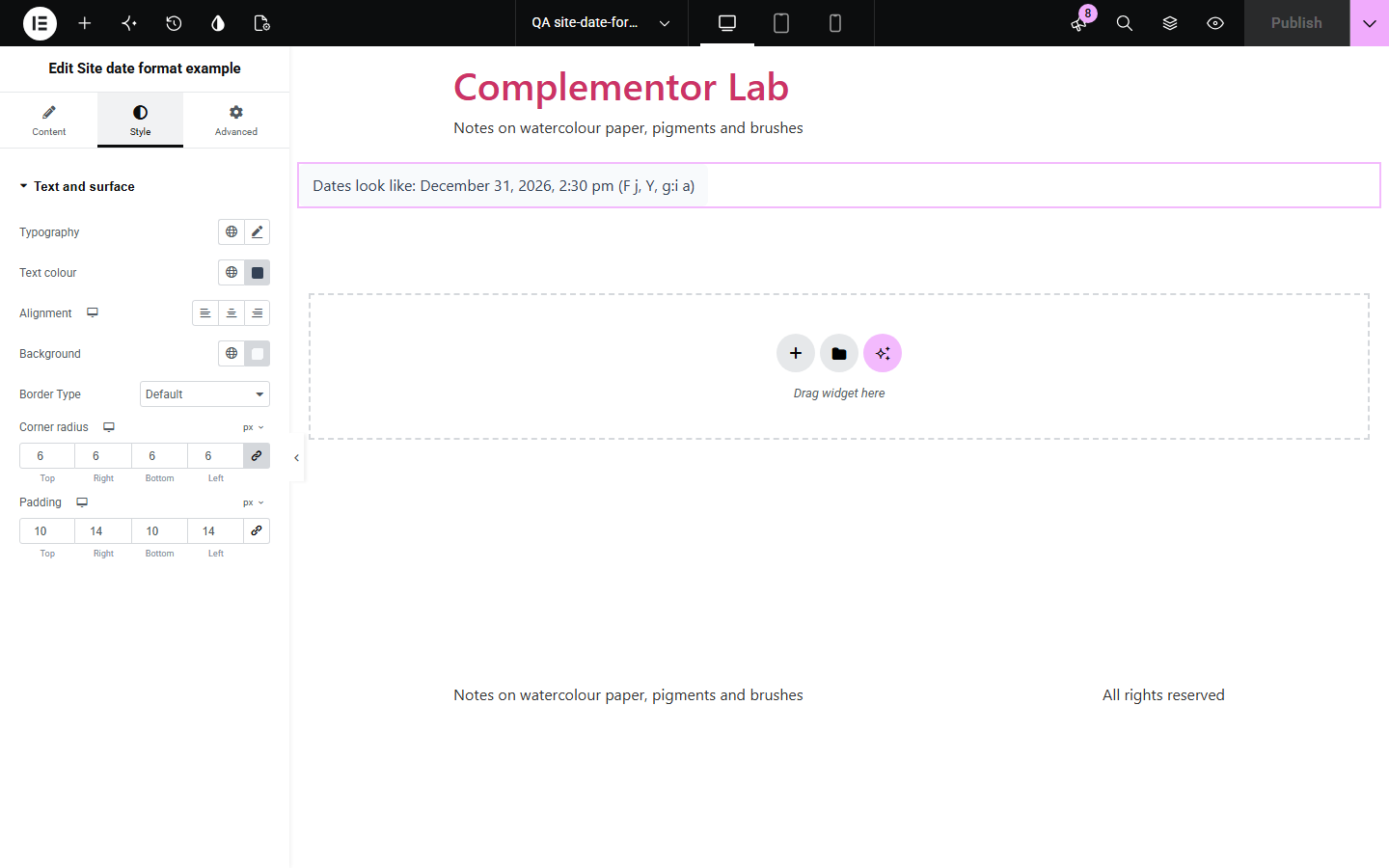
Style guides, help pages and multilingual sites need to show how dates and times appear, and typed examples drift when the settings change. Site date format example prints a real example in the formats from Settings > General, today or on a fixed date, with the format characters if you want them.
Show how dates appear on the site.
Explain date formats to contributors.
Show today's date in the site format.
Start with Complementor installed and your license connected. Enable this module in the WordPress library, then configure it in Elementor.
Install Complementor, connect your license and enable Site date format example in the Complementor library.
Check the date and time formats in Settings > General.
Add the widget and choose date, time or both.
Set a fixed example date if pages are cached.
Publish and check it on the live page.
Configure the settings available for this module to suit the page you are building.
Date, time or both.
Today or a fixed date.
Optional format characters.
Machine-readable <time> element.
Site time zone.
Read from Settings > General.
Compare the existing Elementor workflow with this Complementor module before choosing your setup.
Go wrong when the format changes.
Show a post's date, not the site's formats.
Complementor uses classic Elementor APIs. Atomic-native controls are not implemented. Check your theme, cache and integrations on a staging site before release.
Check these settings if the published page behaves differently from the editor.
The example date must be year-month-day, such as 2026-12-31, optionally with 14:30.
The page is cached; use a fixed example date.
In Settings > General, Date Format and Time Format.
The PHP date characters, such as j F Y, that make up the format.
No. It works with the free version of Elementor.
The site's time zone from Settings > General.
Yes. It is text inside a <time> element with a machine-readable date.
From Settings > General in WordPress.
No. It is read when the page is built, so a change in Settings shows everywhere.
This module is included with all 1007 current Complementor solutions. Choose your production website allowance; every plan includes the same modules.
Renews at $29 USD each year.
Renews at $49 USD each year.
Renews at $99 USD each year.
Applicable taxes extra. Annual subscriptions renew automatically unless canceled in your customer account. Elementor Pro is required for Exclude current post. Read the terms and 14-day technical-issue refund policy.