Guides and documentation
Let readers skip to the step or chapter they need.
 I Build Elementor.
Add a "Jump to section" drop-down with a Go button that takes visitors to the part of a long page they choose.
These are the actual published outputs of the widget on a sample watercolour kit guide with Brushes, Paper and Paints sections. Choose a section and press Go to try it.
Content › Sections lists each option label and the CSS ID of its destination. Behaviour sets a sticky header offset, smooth scrolling, the placeholder option and the messages for no choice and a missing section. Display sets the label, the Go button text and an icon. The Style tab covers layout, gaps and select width, the label, the select with Normal, Hover and Focus states, border, radius and padding, the Go button with its states, and the status message.
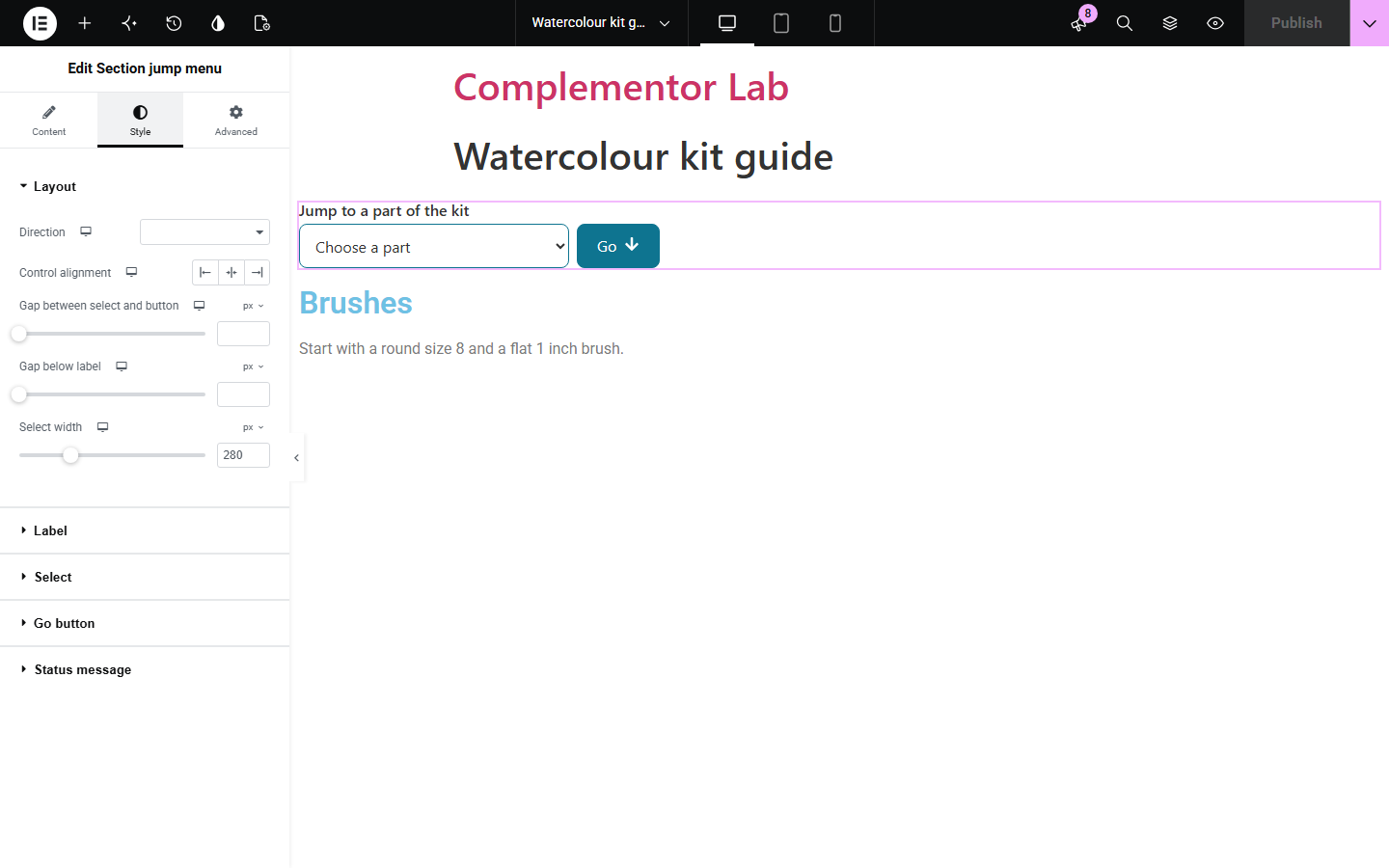
Long pages such as guides, menus and policies make visitors scroll past everything to find the one part they want. Section jump menu adds a labelled drop-down of the sections you list and a Go button that scrolls to the chosen section, moves keyboard focus there and tells screen reader users when something is missing.
Let readers skip to the step or chapter they need.
Jump to starters, mains or desserts on a long menu page.
Take visitors straight to the clause they are looking for.
Start with Complementor installed and your license connected. Enable this module in the WordPress library, then configure it in Elementor.
Install Complementor, connect your license and enable Section jump menu in the Complementor library.
Give each destination container a CSS ID under Advanced, such as brushes or paper.
Add the widget near the top of the page and list each section's label and CSS ID.
Set a sticky header offset if your header covers the top of the page.
Style the select and button, publish, and try each option.
Configure the settings available for this module to suit the page you are building.
Sections you list by label and CSS ID; nothing is guessed from the page.
Go button scrolls to the section, moves keyboard focus there and updates the address.
Sticky header offset and optional smooth scrolling that respects reduced motion.
Placeholder option, or the first section preselected.
Spoken messages when nothing is chosen or a section is missing.
Style: layout, gaps, select width, label, select and button states, border, radius, padding and status text.
Compare the existing Elementor workflow with this Complementor module before choosing your setup.
Table of Contents builds a list of links from your headings. Use it for a full outline; use this widget for a compact drop-down of chosen sections.
A list of anchor links takes more space. This widget keeps the choices in one select and works with links when JavaScript is off.
Complementor uses classic Elementor APIs. Atomic-native controls are not implemented. Check your theme, cache and integrations on a staging site before release.
Check these settings if the published page behaves differently from the editor.
No element on the page has that CSS ID. Check the ID under Advanced on the destination container, without the #.
Set Sticky header offset to the height of your header in pixels.
Smooth scroll is off, or the visitor's device asks for reduced motion.
Rows with an empty or duplicate CSS ID are skipped.
No. It works with the free version of Elementor.
Yes. The select has a visible label, Go moves focus to the section, and messages are announced politely.
Yes. Without JavaScript visitors get the same sections as plain links.
Yes. Each menu works on its own.
No. You list the sections, so only the ones you choose are offered.
This module is included with all 1007 current Complementor solutions. Choose your production website allowance; every plan includes the same modules.
Renews at $29 USD each year.
Renews at $49 USD each year.
Renews at $99 USD each year.
Applicable taxes extra. Annual subscriptions renew automatically unless canceled in your customer account. Elementor Pro is required for Exclude current post. Read the terms and 14-day technical-issue refund policy.