A hero linked to a named section
Place a cue below the introduction and target a unique CSS ID. This is the most predictable way to navigate to a specific section.
 I Build Elementor.
Scroll to a section, matching text, page top or page bottom with a customizable cue.
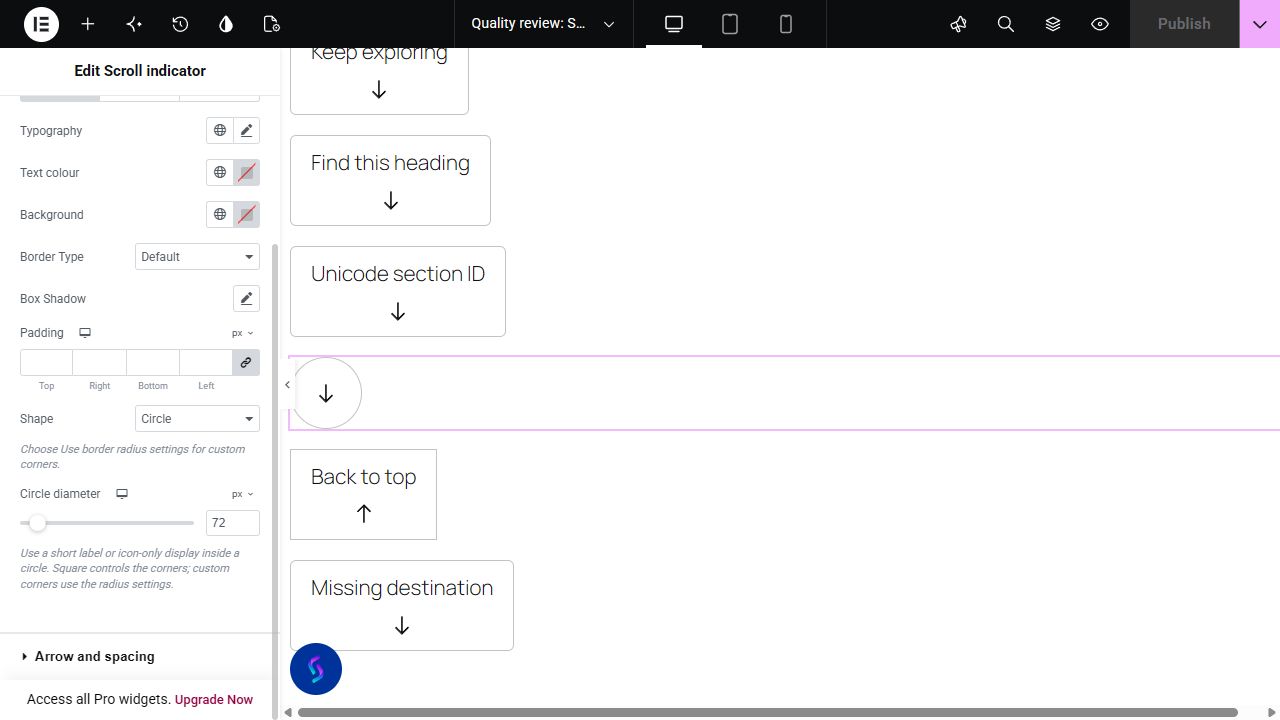
Use native-rendered scroll controls in an isolated sample page with the shipped navigation handler. Compare section IDs, matching text, page top/bottom, Unicode IDs and circle/square presentation, then test a missing destination. These destinations belong to the sample page.
Choose the destination mode, then provide a section ID or target text when needed. Set the label, optional native icon, scrolling preference and header offset; configure icon layout and button states in Style.
A scroll cue gives visitors a clear route from an introduction to the content they want. Choose a named section, matching visible text, the top of the page or the document bottom. Customize the label and optional icon, then allow space for a sticky header.
Place a cue below the introduction and target a unique CSS ID. This is the most predictable way to navigate to a specific section.
Use a matching-text destination when you cannot conveniently add an ID. The first eligible visible match outside the cue is used, so choose text that is specific to the intended section.
Offer a direct shortcut without creating a target ID. Page bottom means the document’s bottom, not automatic recognition of a semantic footer.
Start with Complementor installed and your license connected. Enable this module in the WordPress library, then configure it in Elementor.
Install Complementor, activate your license and enable Scroll-down indicator.
Add the widget to the page and choose a destination: section ID, matching text, page top or page bottom.
For a section ID, set a unique CSS ID on the destination container and enter it without the #. For a text destination, use specific visible text from the intended section.
Set the label and optionally choose an icon from Elementor’s native selector. Configure icon position, gap, size and any circle or square presentation.
Set smooth scrolling and Sticky header offset, then publish and test the destination, keyboard focus and responsive header spacing.
Configure the settings available for this module to suit the page you are building.
Choose Section CSS ID, Text on the page, Page top or Page bottom. The ID or text field appears only for the relevant destination mode.
Show or hide the visible label. Icon-only cues have an editable accessible label; Label supports the native dynamic tags available through your installed edition/integrations.
Keep the default arrow, select a native custom icon or turn the arrow off. Style responsive arrow position, size and gap; icon colors have Normal/Hover/Focus controls.
Turn smooth scrolling on/off, set a 0–500px sticky-header offset for ID/text destinations, and edit or disable missing-destination feedback.
Choose Circle with responsive diameter, Square corners or Use border radius settings. Customize typography, responsive alignment/padding, background, border, shadow and Normal/Hover/Focus surfaces.
Compare the existing Elementor workflow with this Complementor module before choosing your setup.
Elementor already supports same-page navigation through Menu Anchor or a container CSS ID linked from a Button or Icon. Use that native setup for a simple anchor link; Complementor groups the cue, scrolling preference and per-widget offset into one widget.
A scroll progress widget shows how far a visitor has moved through a page. Complementor’s indicator is a clickable section link; it does not measure reading progress or trigger animations as you scroll.
Complementor uses classic Elementor APIs. Atomic-native controls are not implemented. Check your theme, cache and integrations on a staging site before release.
Check these settings if the published page behaves differently from the editor.
Use a unique destination CSS ID. Matching text is case-insensitive and uses the first eligible visible match outside scroll controls; choose distinctive wording when multiple elements contain it.
An empty ID/text setting or a cue with neither label nor arrow is suppressed and explained in the editor. A configured but missing target uses your Destination unavailable message; leaving that message empty disables feedback.
Page bottom targets the document bottom. Select an ID or distinctive visible text when you need a particular footer container or heading.
Reduced-motion preferences take precedence over smooth scrolling. For ID/text navigation, adjust Sticky header offset and test the published responsive header. Confirm the shipped widget script loads.
Set a unique CSS ID on the destination container in Advanced. Choose Section CSS ID and enter it without the # in the cue.
Yes. Enter distinctive visible text. The first eligible visible match outside scroll controls is used; hidden and inert elements are excluded. Prefer a unique CSS ID when wording repeats.
Yes. Page bottom targets the document bottom rather than a semantic footer; Page top returns to the document top. Neither mode requires a destination ID.
Yes. Hide the visible label, supply an accessible destination label and choose Circle with a responsive diameter. Square changes the corners; Use border radius settings enables custom radius.
The cue does not move the page and can announce your editable Destination unavailable message. Leave that message empty to disable feedback.
No. The shipped handler respects reduced-motion preferences. Check destination focus and responsive offsets on your published page.
This module is included with all 1007 current Complementor solutions. Choose your production website allowance; every plan includes the same modules.
Renews at $29 USD each year.
Renews at $49 USD each year.
Renews at $99 USD each year.
Applicable taxes extra. Annual subscriptions renew automatically unless canceled in your customer account. Elementor Pro is required for Exclude current post. Read the terms and 14-day technical-issue refund policy.