Food blogs
Let readers cook your recipe for the number of people at their table.
 I Build Elementor.
Let cooks type how many servings they need and see every ingredient quantity in your recipe scaled, in decimals or kitchen fractions.
These are the actual published outputs of the widget with a sample pancake batter recipe for four: the default decimals, and kitchen fractions starting at six servings in two columns.
Content › Recipe sets the original servings and up to 40 ingredients, each with a quantity (whole, decimal or fraction), unit and name. Behaviour sets the servings shown first, decimals or kitchen fractions, decimal places and how non-numeric quantities are handled. Display sets the heading, field label, texts and an optional icon. The Style tab covers alignment, the list with quantity colour, spacing and columns, the field and reset button with Normal, Hover and Focus states, and the heading, error and icon.
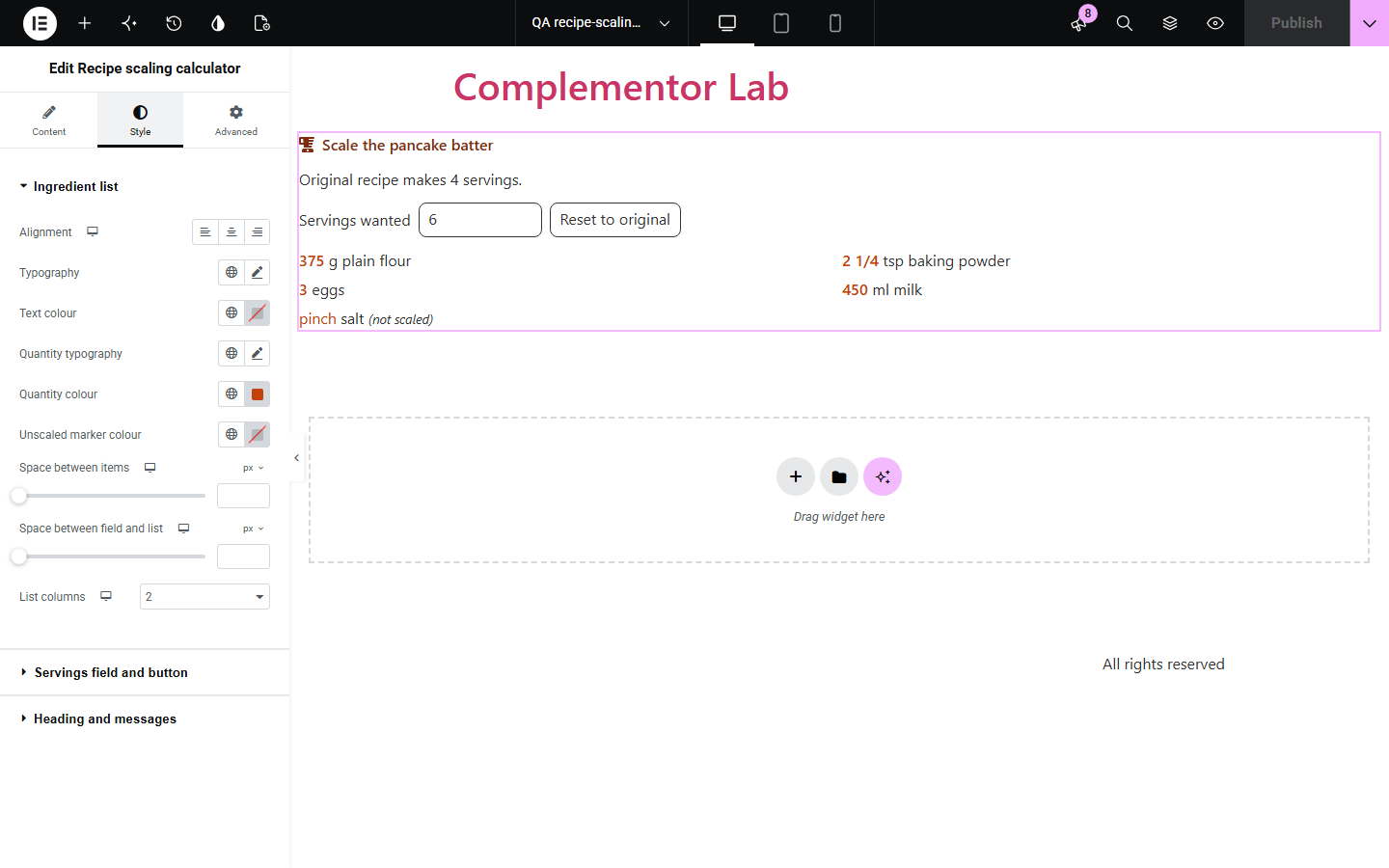
A recipe written for four leaves the cook doing arithmetic for six or two, and fractions like 1 1/2 teaspoons are easy to get wrong. Recipe scaling calculator lists your ingredients with a servings field: change the number and every quantity rescales, while notes like a pinch of salt stay as written and are marked as not scaled.
Let readers cook your recipe for the number of people at their table.
Scale class recipes for one student or a whole group.
Show how much of your product a recipe needs for any batch size.
Start with Complementor installed and your license connected. Enable this module in the WordPress library, then configure it in Elementor.
Install Complementor, connect your license and enable Recipe scaling calculator in the Complementor library.
Add the widget to your recipe page and enter how many servings the recipe makes.
Add each ingredient with its quantity, unit and name.
Choose decimals or kitchen fractions.
Publish and type another number of servings to check the amounts.
Configure the settings available for this module to suit the page you are building.
Up to 40 ingredients with whole, decimal or fraction quantities such as 1 1/2.
Scaled to any number of servings above zero, live as the cook types.
Decimals with 0 to 3 places, or kitchen fractions such as 3/4.
Notes such as a pinch kept as written and marked as not scaled.
Reset to the original servings and a spoken confirmation.
Style: list columns, quantity colour, field and button states, heading and icon.
Compare the existing Elementor workflow with this Complementor module before choosing your setup.
Full recipe plugins add cards, schema and ratings. This widget only scales an ingredient list inside your Elementor layout.
Writing out amounts for 2, 4 and 8 servings clutters the page. The calculator handles any number.
Complementor uses classic Elementor APIs. Atomic-native controls are not implemented. Check your theme, cache and integrations on a staging site before release.
Check these settings if the published page behaves differently from the editor.
Its quantity is not a number, such as pinch or to taste. Choose to keep such notes unmarked if you prefer.
The servings must be a number above zero, for example 6 or 2.5.
Original servings or the ingredient list is missing. The editor explains which.
Yes. Choose kitchen fractions; amounts are rounded to common kitchen fractions.
No. It works with the free version of Elementor.
Yes. The field has a label, errors and the scaled confirmation are announced, and the list is a real list.
No. Quantities scale in the units you enter; it does not convert grams to cups.
Yes. The original recipe is shown; the field appears when JavaScript runs.
No. Use a recipe plugin or SEO plugin for structured data.
This module is included with all 1007 current Complementor solutions. Choose your production website allowance; every plan includes the same modules.
Renews at $29 USD each year.
Renews at $49 USD each year.
Renews at $99 USD each year.
Applicable taxes extra. Annual subscriptions renew automatically unless canceled in your customer account. Elementor Pro is required for Exclude current post. Read the terms and 14-day technical-issue refund policy.