Resources pages
Worksheets, guides and price lists in one place.
 I Build Elementor.
List files from your Media Library to download, each with a type badge, size, date and description and a download button, as a list or cards.
These are the actual published widgets listing files from the demo site’s Media Library.
Downloads sets the heading and its tag, the files with an optional name and description each, the type, size, date and description, the button text, downloading instead of opening, a list or cards, layout and spacing, text before and after each name, text when nothing can be shown, the name tag and an icon on the buttons. The Style tab covers the button’s text, colours, background, border and hover and focus states, the icon, and the heading, name, details, badge, card and divider colours.
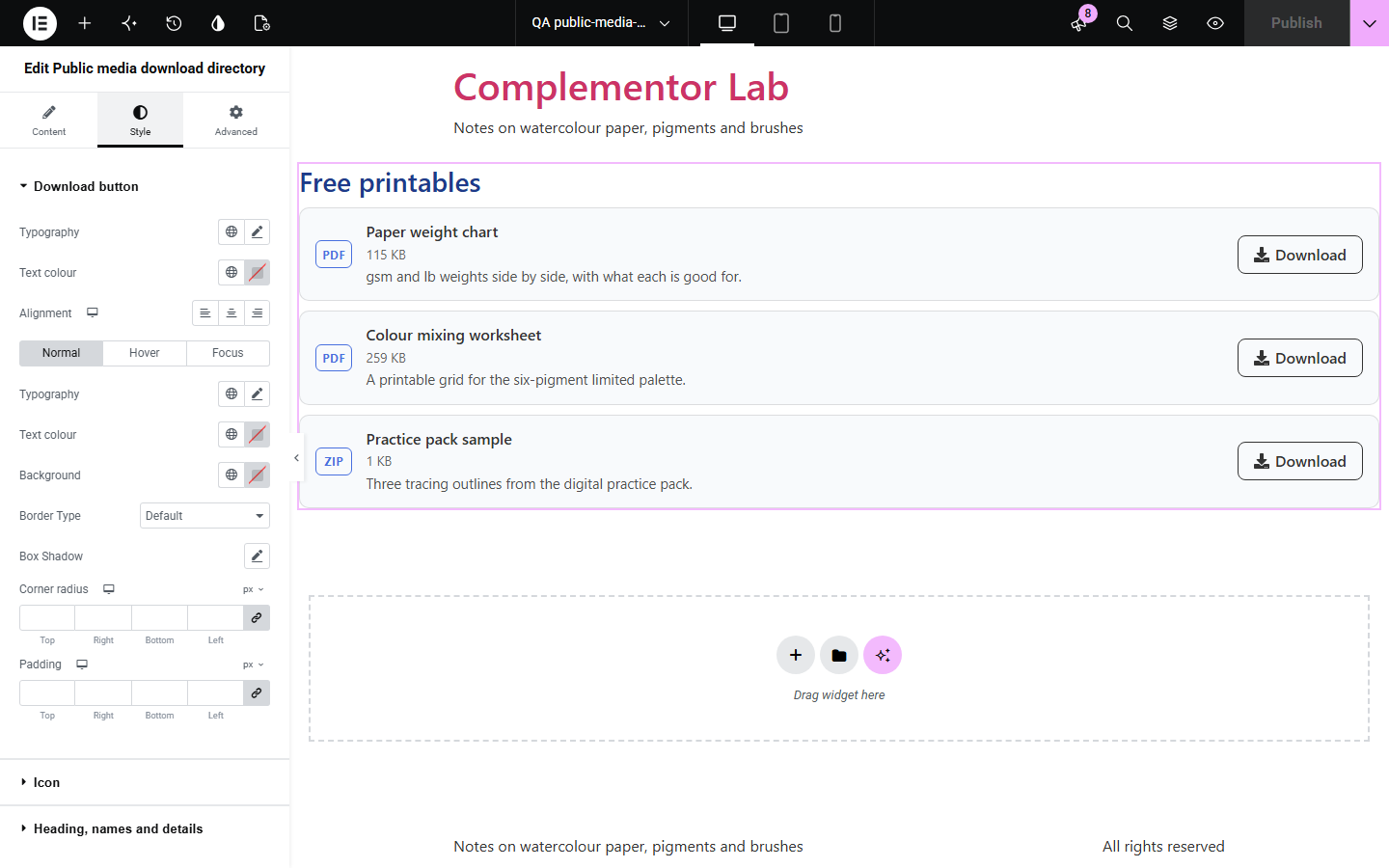
A page of plain file links does not tell visitors what they are getting or how big it is, and a PDF that opens in the browser instead of downloading confuses people. This widget lists the Media Library files you choose with a PDF, ZIP or other type badge, the file size, an optional upload date and a description from the file’s caption or your own, and a Download button that saves the file. Files attached to private, draft or password-protected content are left out.
Worksheets, guides and price lists in one place.
Manuals and specification sheets beside the product.
Lesson handouts to download.
Start with Complementor installed and your license connected. Enable this module in the WordPress library, then configure it in Elementor.
Install Elementor and Complementor, connect your license and enable Public media download directory in the Complementor library.
Upload your files to the Media Library and give them a title and caption.
Add the widget and add each file under Files.
Choose the details to show, the button text and a list or cards.
Style the buttons, badges and cards.
Configure the settings available for this module to suit the page you are building.
A type badge such as PDF or ZIP.
The file size, read from the file.
The upload date and a description from the caption or your own text.
A Download button that saves the file instead of opening it.
A list with dividers or cards.
Files on private or protected content left out.
Compare the existing Elementor workflow with this Complementor module before choosing your setup.
Hand-picked posts in reading order.
How buyers get purchased downloads.
Complementor uses classic Elementor APIs. Atomic-native controls are not implemented. Check your theme, cache and integrations on a staging site before release.
Check these settings if the published page behaves differently from the editor.
It is attached to a private, draft or password-protected post or page, or it is past the first 20.
Browsers only honour the download setting for files on your own site; files served from another domain, such as a CDN, may open.
The file is not on this server, for example when the Media Library is offloaded to cloud storage.
No. It works with the free version of Elementor.
Any file in your Media Library, such as PDF, ZIP, audio or images.
No. Listed files are public links; it leaves out files attached to private content.
Yes. Drag the files in the list.
Yes. Each button is named with the file, such as “Download Paper weight chart (PDF)”, and the type is read out.
This module is included with all 1007 current Complementor solutions. Choose your production website allowance; every plan includes the same modules.
Renews at $29 USD each year.
Renews at $49 USD each year.
Renews at $99 USD each year.
Applicable taxes extra. Annual subscriptions renew automatically unless canceled in your customer account. Elementor Pro is required for Exclude current post. Read the terms and 14-day technical-issue refund policy.