API exports
Let customers turn an API response into a spreadsheet.
 I Build Elementor.
Let visitors turn JSON records into CSV in the browser, with nested objects as columns, spreadsheet-safe values and a one-click download.
These are the actual published widgets running in your browser; change the JSON and download or copy the CSV.
Conversion sets live or button conversion, the separator, nested objects as columns, the header row, quoting, line endings, formula protection, visitor options, the download file name and the size limit. Labels sets the heading, JSON label and starting JSON and every button and message. The Style tab covers the layout, the JSON area, the CSV panel and the buttons.
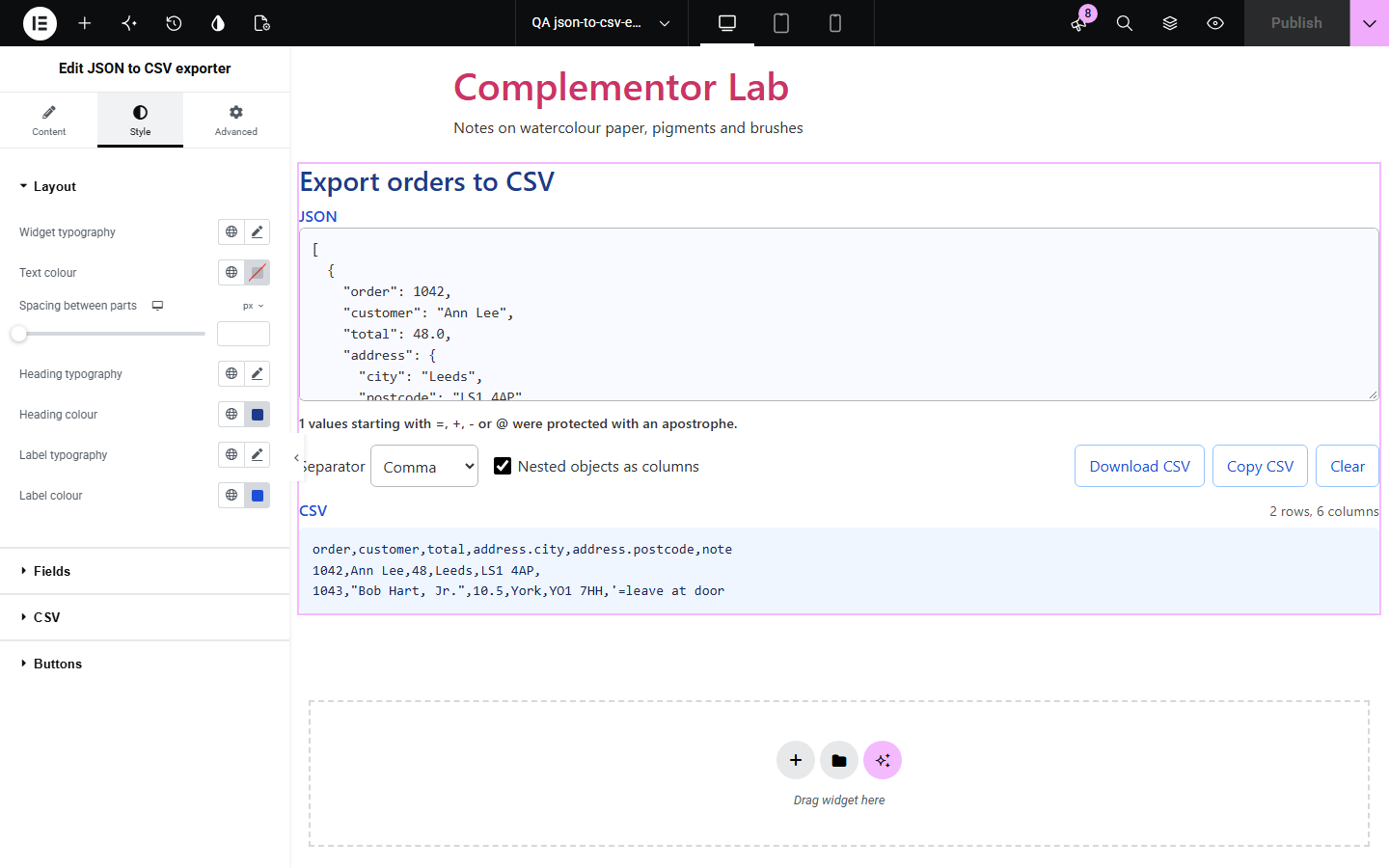
APIs and apps hand out JSON, but most people work in spreadsheets. Converting by hand means juggling quotes, commas inside values and nested objects. JSON to CSV exporter turns pasted JSON records into clean CSV, splits nested objects into columns and protects values that spreadsheets would run as formulas.
Let customers turn an API response into a spreadsheet.
Convert exported records for accounting or mailing tools.
Offer a quick, private converter on your site.
Start with Complementor installed and your license connected. Enable this module in the WordPress library, then configure it in Elementor.
Install Complementor, connect your license and enable JSON to CSV exporter in the Complementor library.
Add the widget to a tools or documentation page.
Choose the separator, whether nested objects become columns and the download file name.
Keep formula protection on unless the CSV is not meant for spreadsheets.
Paste some JSON records and download the CSV to check it.
Configure the settings available for this module to suit the page you are building.
Lists of objects, lists of lists, lists of values or a single object.
Nested objects as dotted columns, such as address.city, or as JSON text.
Comma, semicolon or tab separator, also for visitors.
Header row, quote every value, Windows line endings.
Protection against spreadsheet formulas in values starting with =, +, - or @.
Download as a UTF-8 file that Excel reads correctly, Copy and Clear.
Invalid JSON reported with its line and column.
Compare the existing Elementor workflow with this Complementor module before choosing your setup.
Goes the other way, from a spreadsheet to JSON.
Upload data to another site; this widget keeps it in the visitor’s browser.
Complementor uses classic Elementor APIs. Atomic-native controls are not implemented. Check your theme, cache and integrations on a staging site before release.
Check these settings if the published page behaves differently from the editor.
Use Download CSV: the file starts with a UTF-8 marker that Excel needs. Copied text depends on how it is pasted.
They start with =, +, - or @, which spreadsheets would run as formulas. Turn off formula protection if that is not needed.
Your spreadsheet expects semicolons; choose Semicolon as the separator.
JSON needs double quotes around keys and text and no trailing commas. The message gives the line and column.
No. It works with the free version of Elementor.
No. The conversion and download happen in the visitor’s browser.
They are written as JSON text in their cell, such as ["a","b"].
Every key becomes a column, in the order first seen; missing values are left empty.
Up to 2 million characters; the default limit is 500,000.
This module is included with all 1007 current Complementor solutions. Choose your production website allowance; every plan includes the same modules.
Renews at $29 USD each year.
Renews at $49 USD each year.
Renews at $99 USD each year.
Applicable taxes extra. Annual subscriptions renew automatically unless canceled in your customer account. Elementor Pro is required for Exclude current post. Read the terms and 14-day technical-issue refund policy.