Food blogs
Let readers cook for two or for ten without doing the maths.
 I Build Elementor.
Show a recipe's ingredients with quantities, units, notes and section labels, and let visitors change the servings to rescale the amounts.
These are the actual published outputs of the widget. The servings buttons work here too.
Content sets the ingredient and section rows in a repeater, the servings the quantities are for, the servings buttons and label, the layout, list markers and the section label tag. The Style tab covers ingredient, quantity and note styles, lines, section labels and the servings buttons.
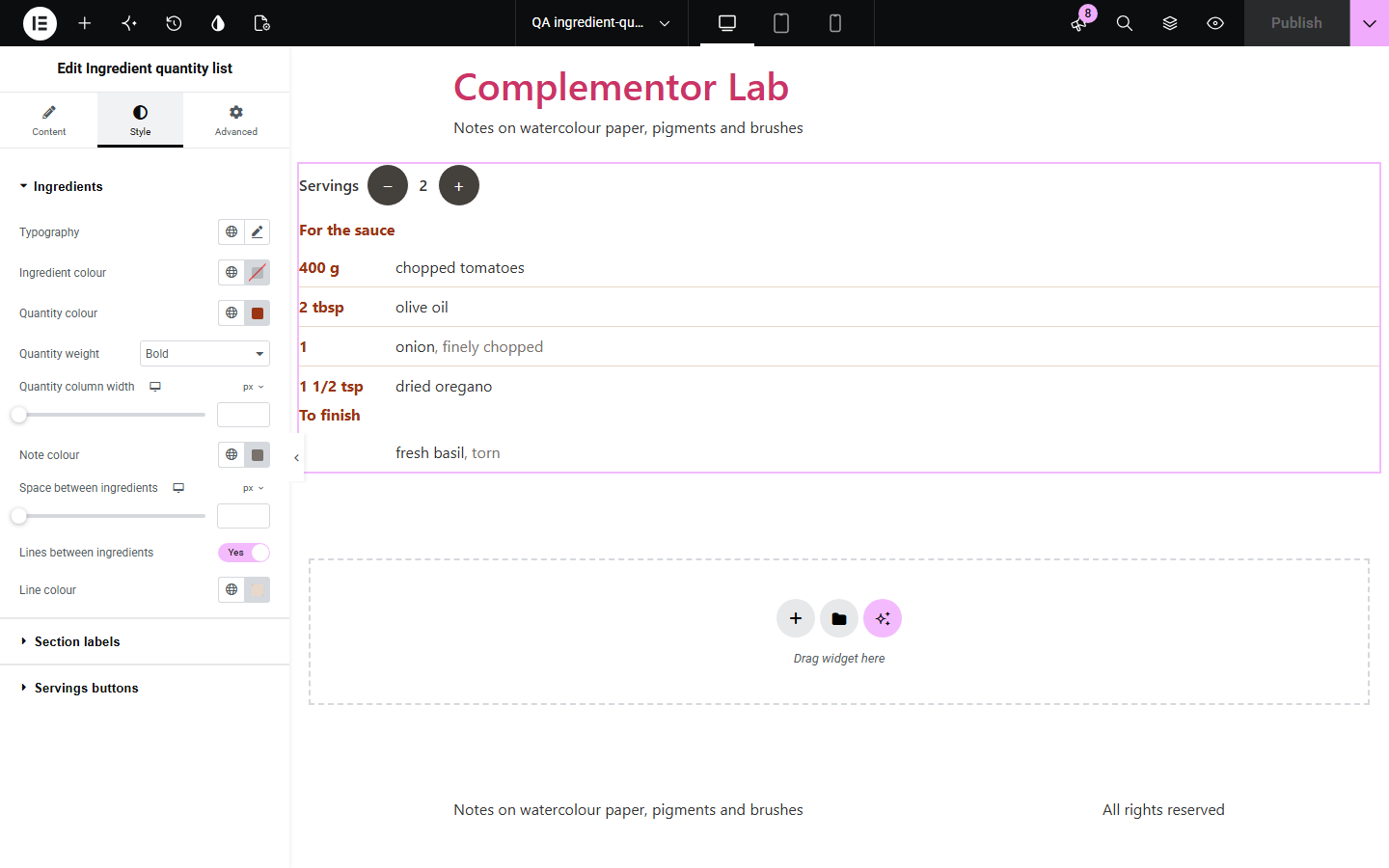
Recipe ingredients are usually typed into a text box, so quantities do not line up, sections such as “For the sauce” are just bold lines, and readers cooking for six have to do the maths themselves. Ingredient quantity list keeps each ingredient as a row with its quantity, unit and note, groups them under real section labels, and adds − and + buttons that rescale every numeric amount, including fractions such as 1½.
Let readers cook for two or for ten without doing the maths.
Show class recipes in clear, grouped lists.
Share recipes that use your products, with exact amounts.
Start with Complementor installed and your license connected. Enable this module in the WordPress library, then configure it in Elementor.
Install Complementor, connect your license and enable Ingredient quantity list in the Complementor library.
Add the widget to a recipe page or post.
Add a row for each ingredient and a section row for each group.
Set the servings and choose whether visitors can change them.
Style the quantities, labels and buttons.
Configure the settings available for this module to suit the page you are building.
Quantity, unit, ingredient and note.
Section labels such as “For the sauce”.
Servings buttons that rescale amounts.
Fractions such as ½ and 1 1/2.
Quantity column or one line.
Real lists for screen readers.
Compare the existing Elementor workflow with this Complementor module before choosing your setup.
Quick to type, but quantities do not line up or rescale.
Adds a whole recipe card system when you only need the ingredients.
Complementor uses classic Elementor APIs. Atomic-native controls are not implemented. Check your theme, cache and integrations on a staging site before release.
Check these settings if the published page behaves differently from the editor.
Only numbers, fractions and ranges change. Text such as “a pinch” stays as written.
Set the servings above 0 and turn on “Let visitors change the servings”. The buttons need JavaScript.
Rows without an ingredient are skipped, and sections without ingredients are left out.
Whole numbers rescale as decimals. Write the amount as a fraction, such as 1/2, to get fractions back.
No. It works with the free version of Elementor.
No. It rescales the amounts and keeps your units as written.
No. Visitors change the servings in their own browser only.
Yes. It uses real lists, labelled buttons and a spoken update after each change.
Yes. The ingredient field accepts dynamic tags.
This module is included with all 1007 current Complementor solutions. Choose your production website allowance; every plan includes the same modules.
Renews at $29 USD each year.
Renews at $49 USD each year.
Renews at $99 USD each year.
Applicable taxes extra. Annual subscriptions renew automatically unless canceled in your customer account. Elementor Pro is required for Exclude current post. Read the terms and 14-day technical-issue refund policy.