Invoicing
Pass card fees on to clients without losing a cent.
 I Build Elementor.
Let visitors work out what to charge so a percentage plus fixed fee is covered, or what a charge leaves after fees, to the cent with a full breakdown.
These are the actual published widgets running in your browser; enter your own amount and fee to try them.
Amount and fee sets the starting amount and fee, your own fee presets, the currency, which way to work it out and what visitors can change. Behaviour turns the breakdown, the explanation and live updates on or off and sets the note. Labels sets every label. The Style tab covers the layout, the answer, table lines, the note, fields and the Calculate button.
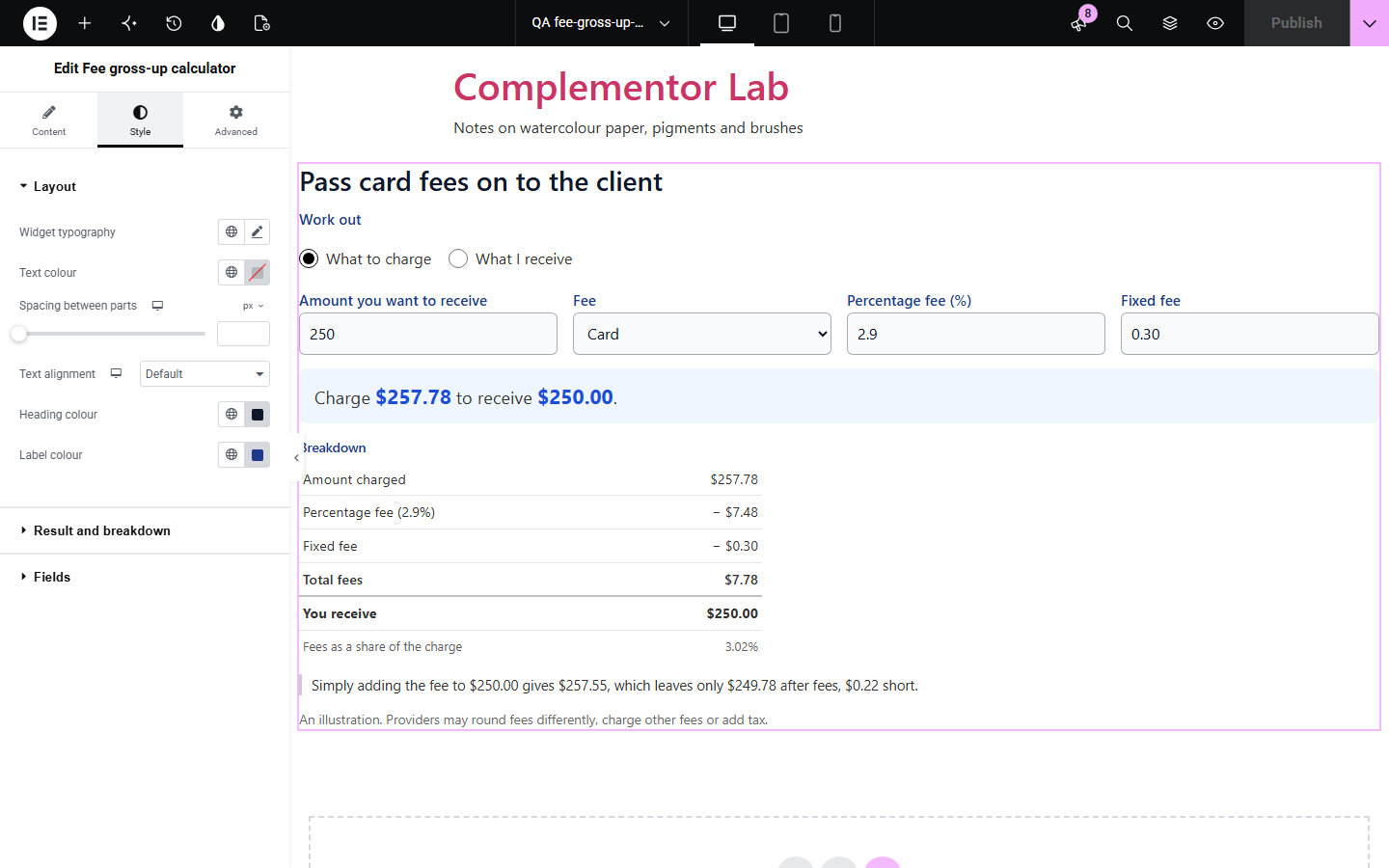
Adding a 2.9% fee to an invoice does not cover a 2.9% fee, because the fee is taken from the larger total; you end up a little short every time. Fee gross-up calculator works out the charge that leaves exactly the amount you want after a percentage plus fixed fee, rounded up to the cent, shows the full breakdown and the effective fee rate, explains how far short simply adding the fee falls, and can also show what any charge leaves after fees.
Pass card fees on to clients without losing a cent.
Let people cover the processing fee on their payment.
Show sellers what they keep after the platform fee.
Start with Complementor installed and your license connected. Enable this module in the WordPress library, then configure it in Elementor.
Install Complementor, connect your license and enable Fee gross-up calculator in the Complementor library.
Add the widget to an invoicing, pricing or help page.
Enter a starting amount and your fee as percentage and fixed fee.
Add presets for the fees you use, such as card and bank transfer, and choose the currency.
Keep or edit the note under the result, then change the amount to check it.
Configure the settings available for this module to suit the page you are building.
What to charge to receive an amount, or what a charge leaves after fees.
A percentage fee, a fixed fee and your own named presets.
Charges rounded up to the cent so the amount you want is always covered.
A breakdown of the charge, each fee, the amount received and the effective rate.
An explanation of how far short simply adding the fee falls.
Any currency, and a note that the result is an illustration.
Compare the existing Elementor workflow with this Complementor module before choosing your setup.
Splits a total into payments with dates.
Compares offers per kilogram, litre or item.
Complementor uses classic Elementor APIs. Atomic-native controls are not implemented. Check your theme, cache and integrations on a staging site before release.
Check these settings if the published page behaves differently from the editor.
The charge is rounded up to the cent so the amount is always covered; the result says when that leaves a cent over.
Providers may round fees differently, charge other fees or add tax. Treat the result as an illustration.
A fee of 100% or more takes the whole charge, so no charge can cover it. Enter a percentage below 100.
No. It works with the free version of Elementor.
No. All amounts stay in the visitor’s browser.
Only the fees you enter. Add presets for the fees you use.
Yes. Switch to What I receive and enter the amount charged.
Any three-letter currency code, such as USD, EUR or GBP, or plain numbers.
This module is included with all 1007 current Complementor solutions. Choose your production website allowance; every plan includes the same modules.
Renews at $29 USD each year.
Renews at $49 USD each year.
Renews at $99 USD each year.
Applicable taxes extra. Annual subscriptions renew automatically unless canceled in your customer account. Elementor Pro is required for Exclude current post. Read the terms and 14-day technical-issue refund policy.