Venue and event pages
Place a 'Get directions' link beside the venue address so attendees can open walking or public-transport directions on their phone.
 I Build Elementor.
Turn a saved address into a Google Maps or Apple Maps directions link, with travel mode, optional icon and native button styling.
These are the actual published outputs of the widget for one saved destination: the default Google Maps link, a walking link with the map-marker icon, an Apple Maps public-transport link styled with native Style controls, and the empty-destination case. Select a link to open the provider's directions in a new tab.
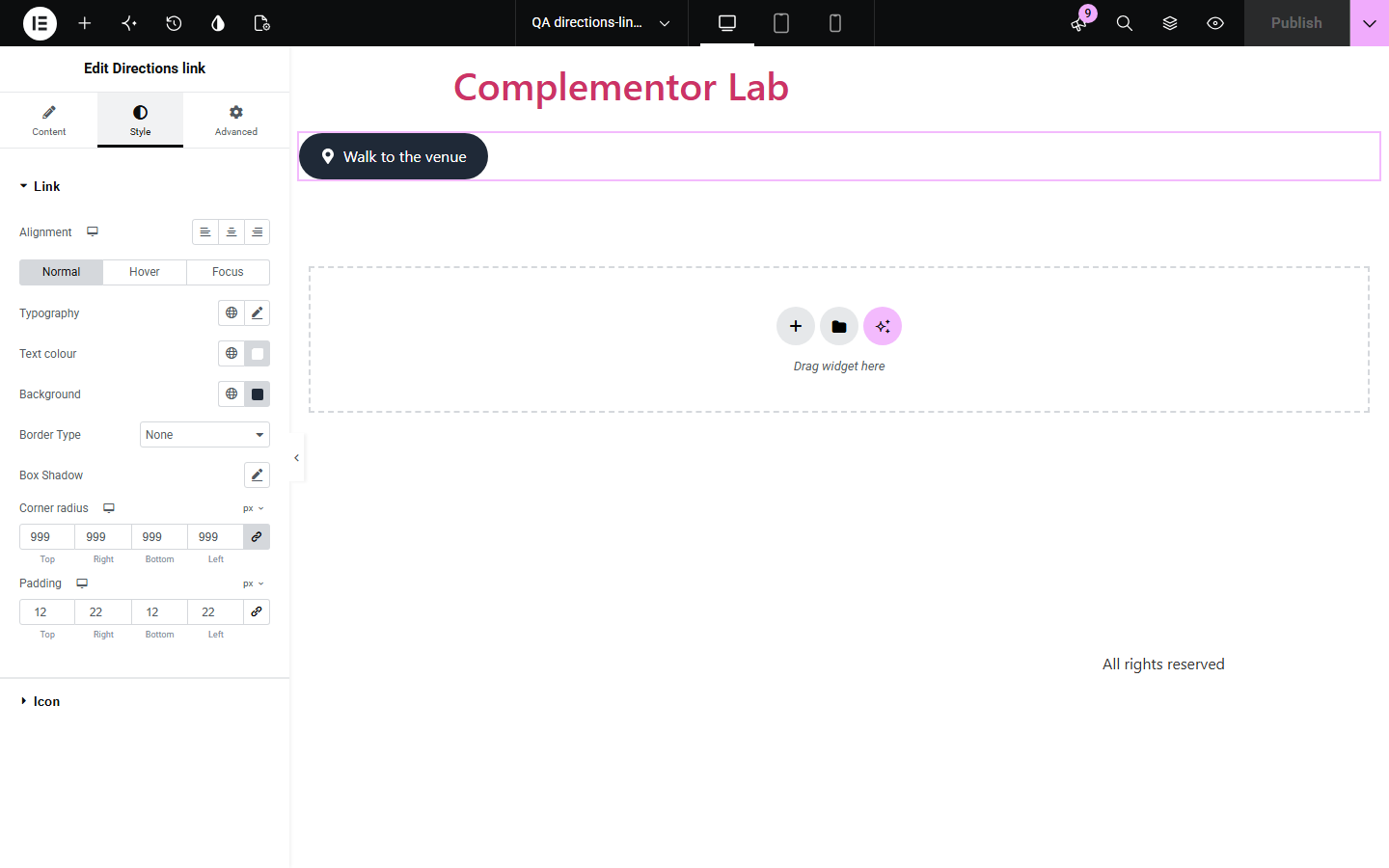
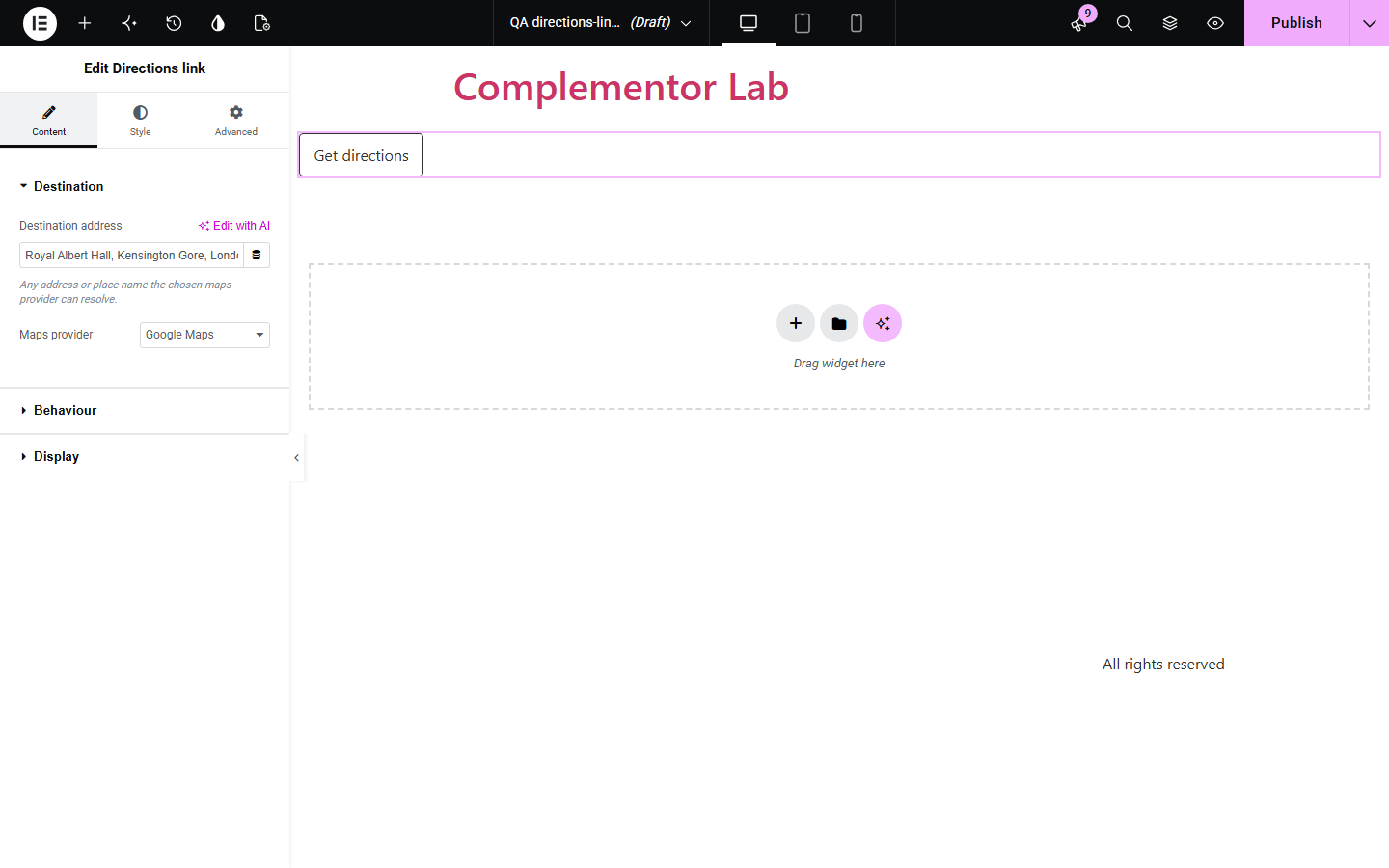
Content has three sections. Destination holds the address (with dynamic tags) and the maps provider. Behaviour sets new-tab opening and a provider-specific travel mode. Display edits the label and turns on an optional icon. The Style tab has a Link section with alignment, typography, Normal/Hover/Focus colours, border, shadow, radius and padding, plus an Icon section for position, size, gap and colour.
Venue, shop, clinic and office pages often need a clear way to start navigation. Directions link turns a saved address or place name into a Google Maps or Apple Maps directions link, so visitors can open their route in one tap.
Place a 'Get directions' link beside the venue address so attendees can open walking or public-transport directions on their phone.
Add a styled directions button next to opening hours and phone details, matching the rest of your contact section.
Use an Elementor dynamic tag for the destination so each location page or template builds its own directions link from saved address data.
Start with Complementor installed and your license connected. Enable this module in the WordPress library, then configure it in Elementor.
Install Complementor, connect your license and enable Directions link in the Complementor library in WordPress.
Drag the Directions link widget into your contact, venue or location section in Elementor.
In Content › Destination, enter the address or place name and choose Google Maps or Apple Maps. You can also insert an Elementor dynamic tag.
In Behaviour, choose whether the link opens in a new tab and pick a travel mode. In Display, edit the label and turn on Show icon if you want the map marker or another icon.
Style the link in the Style tab (alignment, typography, Normal/Hover/Focus colours, border, radius and padding), then publish and test the link on a phone.
Configure the settings available for this module to suit the page you are building.
Destination address text with Elementor dynamic tags, sent to the provider as an encoded destination; addresses that would exceed Google's 2,048-character URL limit hide the link.
Maps provider: Google Maps universal directions URL or Apple Maps directions URL.
Travel mode per provider: Google driving, walking, cycling or public transport; Apple driving, walking or public transport; or the provider default.
Open in new tab with rel="noopener", an editable label and an optional icon (map marker by default) placed before or after the label.
Link styling: responsive alignment, typography, text and background colours for Normal, Hover and Focus states, border, box shadow, focus outline, corner radius and padding.
Icon styling: responsive position, size and gap, plus icon colour.
Compare the existing Elementor workflow with this Complementor module before choosing your setup.
Elementor's free Google Maps widget embeds a map of a location. Use it when visitors need to see the map; Directions link is a lightweight link that opens turn-by-turn directions without loading an embedded map.
A native Button can link to a Google Maps URL you build yourself. Directions link builds and encodes the provider URL from the address, adds travel modes, supports Apple Maps and hides the link when no destination is saved.
Complementor uses classic Elementor APIs. Atomic-native controls are not implemented. Check your theme, cache and integrations on a staging site before release.
Check these settings if the published page behaves differently from the editor.
The destination is empty, or it is so long that the Google Maps URL would exceed 2,048 characters. Enter a shorter address or place name. In the editor the widget shows a setup hint in this case.
Apple Maps links open the Maps app on Apple devices. On other devices they open the maps.apple.com website. Choose Google Maps if most of your visitors use Android or Windows.
Travel mode is set separately for each provider. If you switch from Google Maps to Apple Maps, choose the mode again under Behaviour; cycling is only available for Google Maps.
Turn on Show icon in the Display section. The map marker is used by default; if you choose an uploaded SVG, make sure the file still exists in the Media Library.
Google Maps, using its universal cross-platform directions URL, and Apple Maps. Each link opens directions to your saved destination.
No. The widget builds a standard directions link; it does not embed a map or call a Maps API, so no API key or billing account is needed.
The link sets only the destination. Google Maps and Apple Maps use the visitor's current location or let them choose a starting point in the app.
Yes. The Destination address and Label controls accept Elementor dynamic tags, so you can use fields supported by your Elementor edition and integrations.
It renders a standard link with a visible text label, an icon hidden from assistive technology, and a visible focus outline that you can style in the Focus tab.
This module is included with all 1007 current Complementor solutions. Choose your production website allowance; every plan includes the same modules.
Renews at $29 USD each year.
Renews at $49 USD each year.
Renews at $99 USD each year.
Applicable taxes extra. Annual subscriptions renew automatically unless canceled in your customer account. Elementor Pro is required for Exclude current post. Read the terms and 14-day technical-issue refund policy.