Courses
Show what students struggle with and what they achieve.
 I Build Elementor.
Compare how things were and how they are in two labelled panels side by side, with points marked by crosses and ticks, an arrow and a result line.
These are the actual published widgets comparing before and after a watercolour course.
Before and after sets the heading and its tag, the two labels and statements, a result line, cross and tick marks, side by side or stacked panels and the gap, text before and after each statement, text when both are empty, the statement tag and the arrow icon. The Style tab covers the panels’ text, colour, alignment, background, border, radius and padding, the arrow, and the before and after colours and backgrounds, label, heading and result styles.
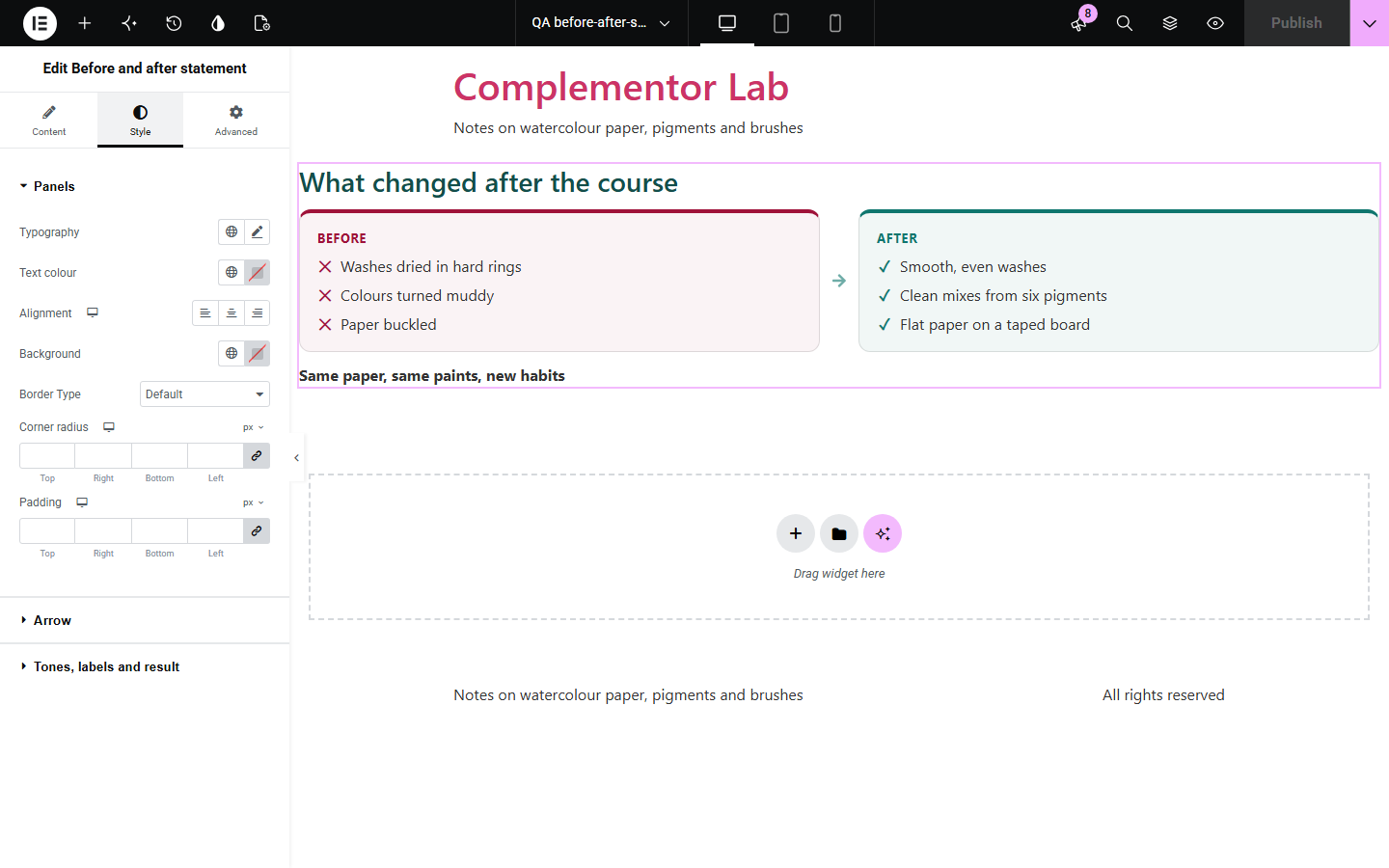
A transformation reads best as a comparison, and building two matching columns with ticks and crosses by hand takes several widgets that drift apart. This widget takes a before and an after statement, turns several lines into points marked with crosses and ticks, shows them in two labelled panels side by side with an arrow between (stacked on phones), and adds an optional heading and result line.
Show what students struggle with and what they achieve.
Problem and solution side by side.
A client’s situation before and after the work.
Start with Complementor installed and your license connected. Enable this module in the WordPress library, then configure it in Elementor.
Install Elementor and Complementor, connect your license and enable Before and after statement in the Complementor library.
Add the widget to a landing page, course page or case study.
Type the before and after statements, one point per line.
Add a heading and a result line if you like.
Style the two tones, panels and arrow.
Configure the settings available for this module to suit the page you are building.
Two labelled panels with your own labels.
One statement, or several lines as points.
Points marked with crosses and ticks.
An arrow between the panels, turned downwards on phones.
A heading and a result line.
Separate colours for the before and after sides.
Compare the existing Elementor workflow with this Complementor module before choosing your setup.
A quotation with its speaker and source.
Hand-picked posts in reading order.
Complementor uses classic Elementor APIs. Atomic-native controls are not implemented. Check your theme, cache and integrations on a staging site before release.
Check these settings if the published page behaves differently from the editor.
Both statements need text for the arrow to show, and the arrow must be turned on.
Put each point on its own line in the statement box.
The panel layout is set to stacked for that screen size; set it to side by side.
No. It works with the free version of Elementor.
No. It compares statements; it has no images or slider.
Yes. Both labels are editable, or leave them empty.
No. It shows what you type.
Yes. Points are lists, and the crosses, ticks and arrow are hidden from screen readers.
This module is included with all 1007 current Complementor solutions. Choose your production website allowance; every plan includes the same modules.
Renews at $29 USD each year.
Renews at $49 USD each year.
Renews at $99 USD each year.
Applicable taxes extra. Annual subscriptions renew automatically unless canceled in your customer account. Elementor Pro is required for Exclude current post. Read the terms and 14-day technical-issue refund policy.