Supplier and partner resource pages
Store the main guide or portal link in an ACF Link field on each partner page and show it as a card with a short explanation and an Open the guide button.
 I Build Elementor.
Show a saved ACF Link field as a small card with its title, optional description, URL text, icon and safe new-tab handling.
These are the actual published outputs of the widget reading sample ACF Link fields saved on the demo page: the default title link, an action-link card with description and URL, the same card styled with native Style controls, a URL-format field with a fallback title, and a field with no saved value.
Content has three sections. Source picks a top-level ACF Link field of the post (or takes a field name or key for templates) and holds an optional description. Behaviour chooses whether the title or a separate action link is clickable, a fallback title, new-tab handling, nofollow, allowed protocols and the text shown when there is no link. Display adds URL text and an optional icon. The Style tab has Card, Link (Normal/Hover/Focus) and Description and URL sections.
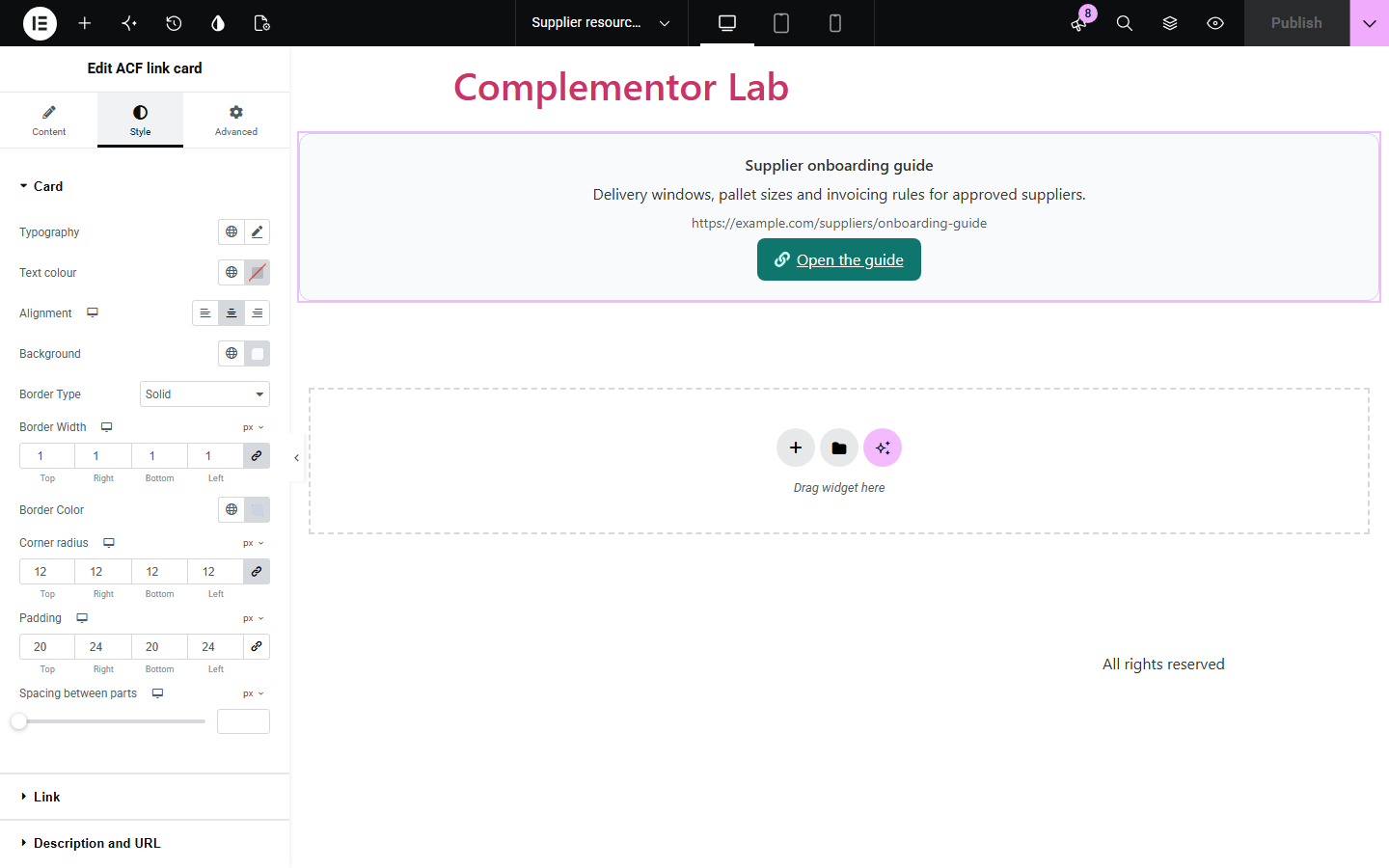
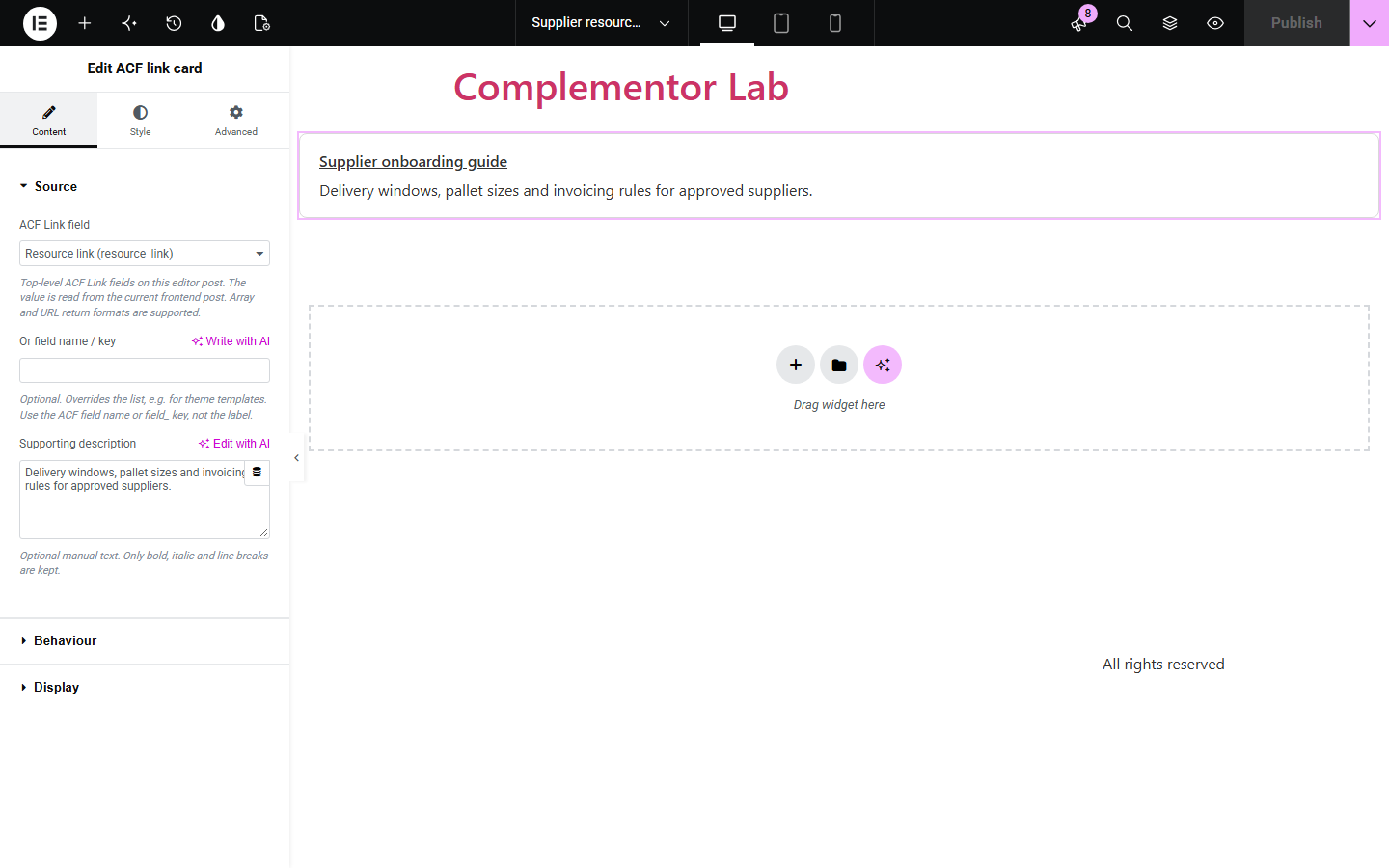
Resource, partner and download pages often store one important link in an ACF Link field. ACF link card reads that field on the current post and shows it as a small card: the link title, an optional description and URL, and the target and rel attributes the field asks for.
Store the main guide or portal link in an ACF Link field on each partner page and show it as a card with a short explanation and an Open the guide button.
Let editors paste a document or file link into an ACF Link field and show it consistently on every post that uses the same single template.
Use a Link field for each location's booking or enquiry page, with a fallback title when editors only save the URL.
Start with Complementor installed and your license connected. Enable this module in the WordPress library, then configure it in Elementor.
Install Advanced Custom Fields, then install Complementor, connect your license and enable ACF link card in the Complementor library.
In ACF, add a Link field to a field group shown on your pages, posts or custom post type, and save a link on the post you want to show.
Open that post (or its single template) in Elementor and drag the ACF link card widget into the layout.
In Content › Source, choose the Link field (or type its field name for a template) and add a description; then set Behaviour and Display options such as action link, new tab and icon.
Style the card, link and text in the Style tab (Card, Link with Normal/Hover/Focus, Description and URL), then publish and check the public page.
Configure the settings available for this module to suit the page you are building.
Source: a list of the post's top-level ACF Link fields, or a field name or field key for theme templates, plus an optional supporting description that keeps only bold, italic and line breaks.
Link behaviour: make the title the link or add a separate action link with its own label, and set a title to use when the field has none (otherwise the URL is shown).
Opening and safety: follow the field's new-tab setting or force a new tab or the same tab; new-tab links get rel="noopener noreferrer" and an editable visually hidden announcement; optional rel="nofollow"; an allowed-protocol list (http, https, mailto, tel).
Empty state: optional text to show when the field has no usable link; otherwise nothing is published, and the editor shows a setup hint.
Display: optional URL text under the title and an optional Elementor icon before or after the link text.
Card style: typography, text colour, responsive alignment, background, border, corner radius, padding and spacing between parts.
Link style: typography, Normal/Hover/Focus text and background colours, border, hover border colour, focus outline colour, width and offset, padding, radius, icon size and icon gap.
Description and URL style: separate typography and colour for the description and the URL text.
Compare the existing Elementor workflow with this Complementor module before choosing your setup.
Elementor Pro's ACF URL dynamic tag can set a Button link from ACF URL, Page Link, File and similar fields, but it does not list the Link field type. Prefer it when you store a plain URL field and only need a button; use ACF link card when the data is in a Link field with its own title and new-tab setting.
ACF's documentation shows how to print a Link field with PHP in a theme file. Prefer that in a custom theme; ACF link card gives the same output in Elementor without code, with native Style controls.
Complementor uses classic Elementor APIs. Atomic-native controls are not implemented. Check your theme, cache and integrations on a staging site before release.
Check these settings if the published page behaves differently from the editor.
The list shows top-level Link fields whose field group location rules match the post you are editing. Check the location rules, make sure the field type is Link (not URL or Page Link) and reopen the editor. In a theme template, type the field name in Or field name / key instead.
The field has no saved link on this post, the post is not public (draft, private or password-protected), or the link uses a protocol that is not allowed. Save a link in the ACF field, publish the post, or add the protocol under Allowed protocols. Set Text when there is no link if you want visible text instead.
The field has no link text saved, or it uses ACF's URL return format, which only returns the address. Enter link text in the field or fill in Title when the field has none.
The widget reads top-level Link fields of the current post only. Move the link to a top-level field or use a widget built for repeaters.
Only the ACF Link field, with either the Link array or the URL return format. Text, URL and Page Link fields are not read.
Yes. In a single template the widget reads the field from the post being viewed. Type the field name or key in Or field name / key, because the template itself has no ACF fields to list.
No. It works on normal pages and posts with Elementor and the free Advanced Custom Fields plugin. ACF must be active, because the widget reads the field through ACF. Theme templates need Elementor Pro's Theme Builder.
By default the widget follows the field's Open in a new tab setting. New-tab links get rel="noopener noreferrer" and a visually hidden "(opens in a new tab)" note for screen readers, which you can edit or clear.
No. Only the protocols you allow (http, https, mailto and tel by default) plus relative and #anchor links are output. javascript:, data: and other schemes are never printed.
This module is included with all 1007 current Complementor solutions. Choose your production website allowance; every plan includes the same modules.
Renews at $29 USD each year.
Renews at $49 USD each year.
Renews at $99 USD each year.
Applicable taxes extra. Annual subscriptions renew automatically unless canceled in your customer account. Elementor Pro is required for Exclude current post. Read the terms and 14-day technical-issue refund policy.