Template pages built on ACF data
Keep a checklist at the top of an event, property or team-member page while you lay it out, so you can see which ACF values the design still needs.
 I Build Elementor.
Show editors which selected ACF fields on the post still have no saved value, inside the Elementor editor only; visitors never see it.
The hint renders only in the Elementor editor and preview for users who can edit the post. These examples were captured from the editor on a sample event page; the published page outputs nothing, for logged-in administrators as well as visitors.
Content has three sections. Source picks the ACF fields to check from the field groups assigned to this post. Behaviour turns the all-complete message on or off and edits its text. Display sets the heading, its HTML tag and an optional icon. The Style tab has a Hint box section (typography, text colour, alignment, background, border, radius, padding, space between items), a Heading section (typography, colour, space below) and an Icon section.
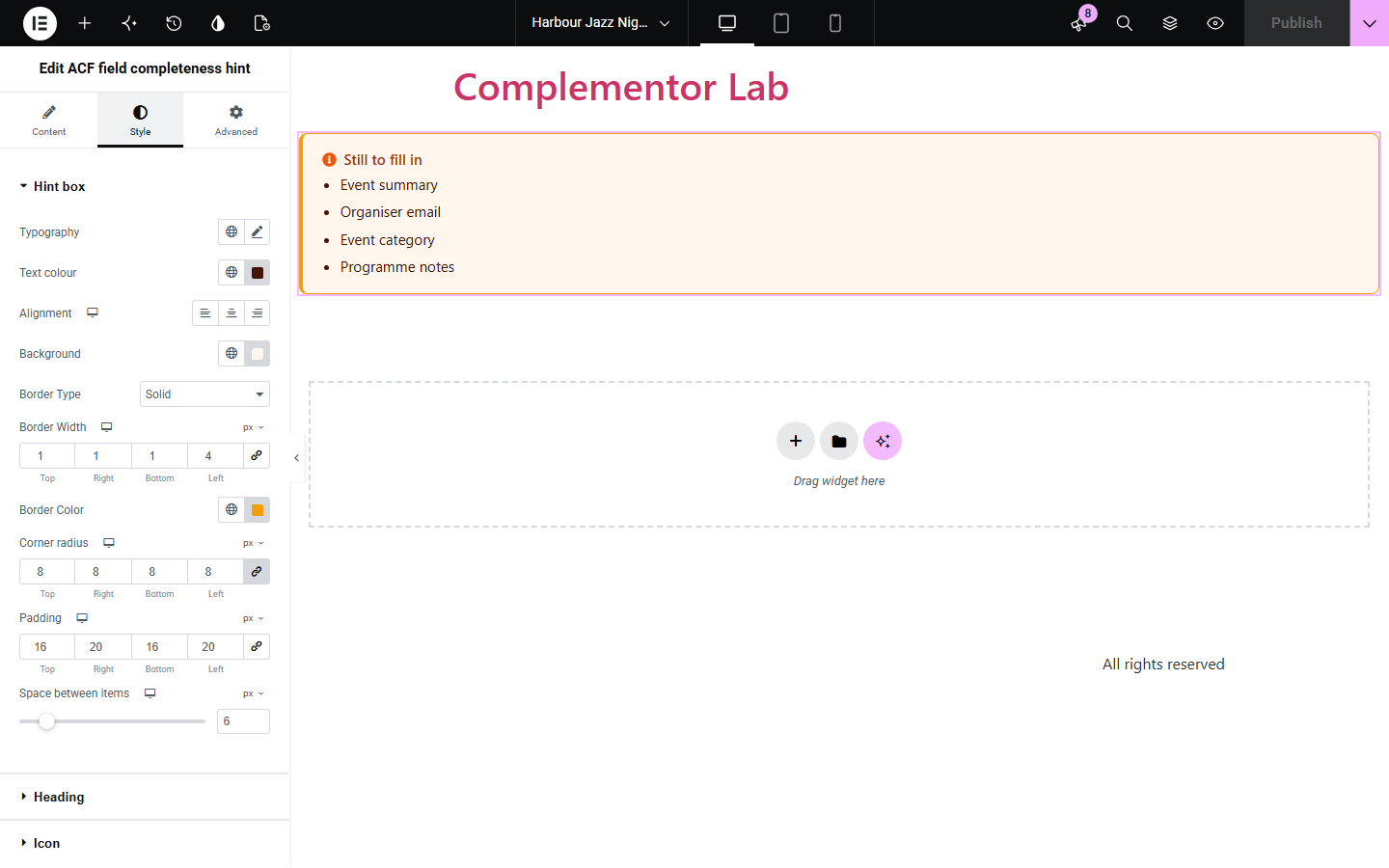
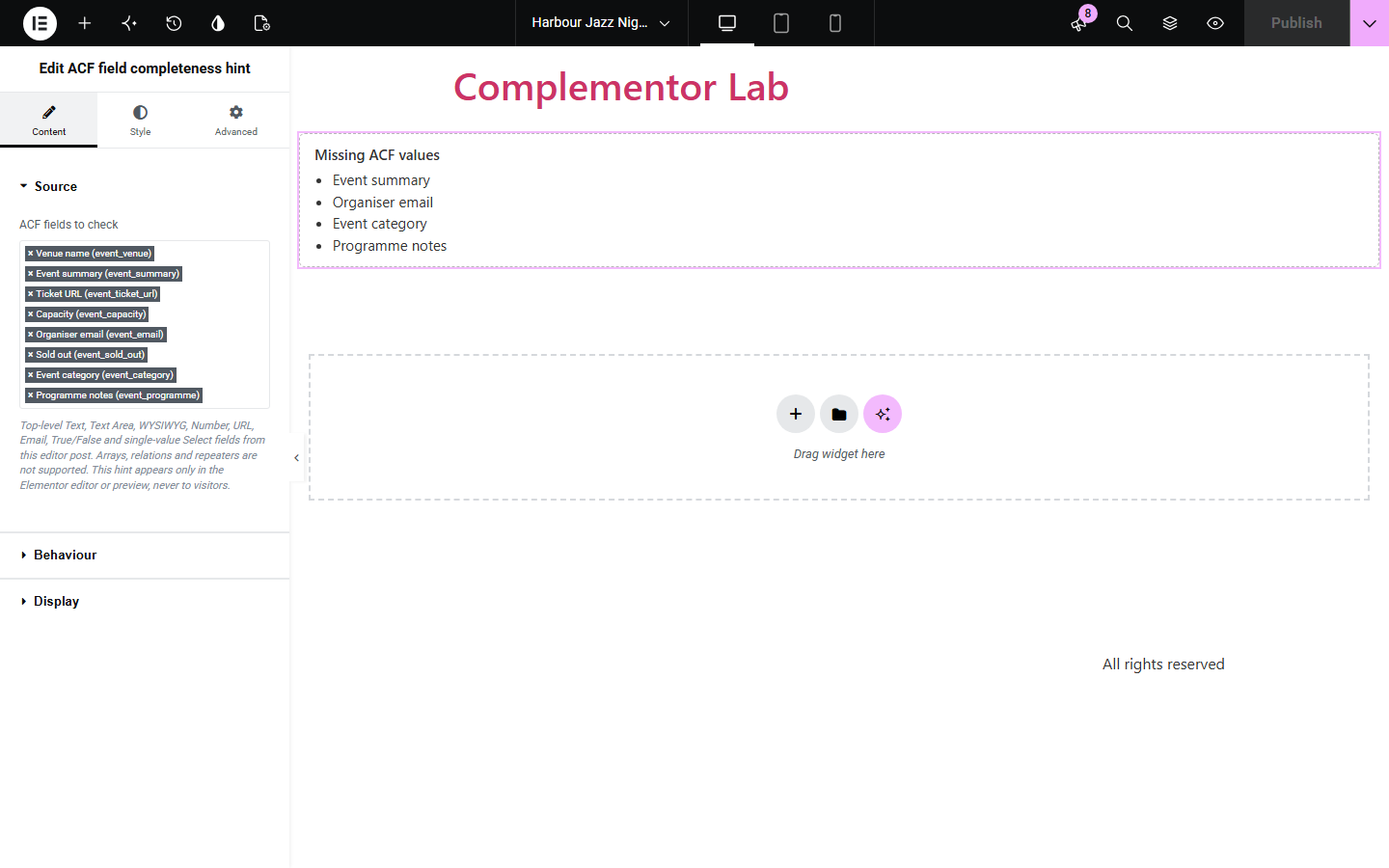
When a page layout depends on ACF values, an empty field silently leaves a gap in the design. ACF field completeness hint shows, inside the Elementor editor, which of the fields you chose still have no saved value on the post you are editing, so you can fill them in before you publish.
Keep a checklist at the top of an event, property or team-member page while you lay it out, so you can see which ACF values the design still needs.
Leave the hint on the page for colleagues who edit in Elementor: they see which fields are still empty without opening the WordPress edit screen.
Open a draft in Elementor or its preview and confirm the selected fields have saved values before you press Publish.
Start with Complementor installed and your license connected. Enable this module in the WordPress library, then configure it in Elementor.
Install Complementor and Advanced Custom Fields, connect your license and enable ACF field completeness hint in the Complementor library in WordPress.
Make sure an ACF field group with Text, Text Area, WYSIWYG, Number, URL, Email, True/False or single-value Select fields is assigned to the post type you are editing, then save the post once.
Open the post in Elementor, drag the ACF field completeness hint widget anywhere on the page, and in Content › Source choose the fields to check.
In Behaviour decide whether to show a message when every field has a value, and in Display edit the heading, its tag and the optional icon.
Style the hint in the Style tab (Hint box, Heading and Icon sections). Publish: the hint keeps working in the editor and stays invisible on the live page.
Configure the settings available for this module to suit the page you are building.
ACF fields to check: a multi-select of the top-level Text, Text Area, WYSIWYG, Number, URL, Email, True/False and single-value Select fields assigned to the edited post.
Missing rule: a field counts as missing when it has no saved value, or only an empty or whitespace value; 0 and a saved False count as answered, and ACF default values are not counted as saved.
All-complete message: switch it on or off and edit its text; when it is off the editor shows a short note instead of an empty space.
Heading text with an H2–H6, p or div tag and an optional decorative icon from the Elementor icon library.
Hint box styling: typography, text colour, responsive alignment, background, border, corner radius, padding and space between list items.
Heading and icon styling: heading typography, colour and space below; icon colour, size and gap.
Compare the existing Elementor workflow with this Complementor module before choosing your setup.
Marking a field as Required in ACF blocks saving the post until it has a value. Use it when a value is mandatory; the completeness hint only reports gaps and never blocks a save.
Elementor Pro dynamic tags have a Fallback setting that shows placeholder text when an ACF value is empty. Use fallbacks for visitor-facing defaults; the hint tells editors the value is missing instead of hiding it.
Complementor uses classic Elementor APIs. Atomic-native controls are not implemented. Check your theme, cache and integrations on a staging site before release.
Check these settings if the published page behaves differently from the editor.
No supported field group is assigned to this post. Check the field group's location rules, make sure the fields are top-level and of a supported type, save the post and reopen the editor.
Checkbox, multi-select, relationship, image, group and repeater fields, and any subfield, are not supported. Only top-level Text, Text Area, WYSIWYG, Number, URL, Email, True/False and single-value Select fields appear.
A brand-new post has no saved values to check. Save it as a draft once, then the hint lists the missing fields.
That is intended. The hint appears only in the Elementor editor and preview for users who can edit the post; the live page outputs nothing, even for administrators.
No. The widget renders only in the Elementor editor or preview for users who can edit the post. The published page contains no hint markup.
No. It lists field labels only, never the saved values.
No. A saved 0 and a saved False are real answers. A True/False field that was never saved is missing, even if it has a default value in ACF.
No. It is a visual checklist for editors. Use ACF's Required setting if a field must have a value before saving.
No. It works with free Advanced Custom Fields and free Elementor. Repeater, group and other ACF PRO field types are not checked.
This module is included with all 1007 current Complementor solutions. Choose your production website allowance; every plan includes the same modules.
Renews at $29 USD each year.
Renews at $49 USD each year.
Renews at $99 USD each year.
Applicable taxes extra. Annual subscriptions renew automatically unless canceled in your customer account. Elementor Pro is required for Exclude current post. Read the terms and 14-day technical-issue refund policy.