Furniture
Show width, height and depth in one line.
 I Build Elementor.
Show an item's width, height and depth from ACF Number fields, such as “60 × 40 × 25 cm”, with an optional second unit such as inches.
These are the actual published outputs of the widget on a sample post with sample sizes.
Fields chooses the ACF Number or Range fields for width, height and optional depth, the unit of the saved values, a unit label and a second unit. Display sets the layout, the three labels, the most decimals, text before and after, a text when sizes are missing, the HTML tag and an icon. Style covers text and surface, label and second-unit colours and the icon.
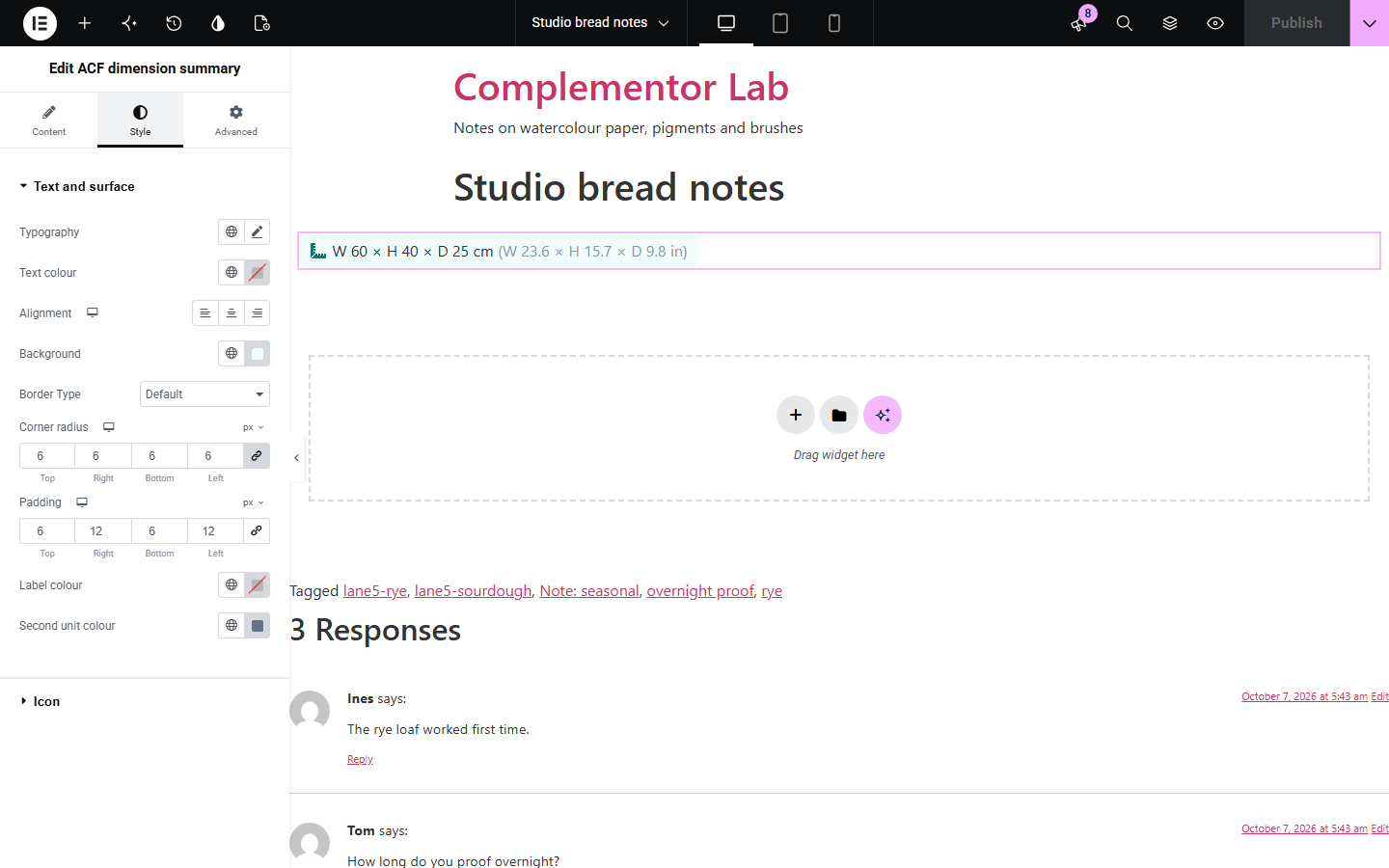
Furniture, artwork, equipment and property listings keep sizes in separate ACF fields, and showing them neatly means three dynamic tags and some fiddly text in between. ACF dimension summary joins the width, height and optional depth into one tidy line such as “60 × 40 × 25 cm”, with letters or as a labelled list, and can show the same size in a second unit, such as inches, for international visitors.
Show width, height and depth in one line.
Give sizes in centimetres and inches.
List dimensions with clear labels.
Start with Complementor installed and your license connected. Enable this module in the WordPress library, then configure it in Elementor.
Install Complementor and ACF, connect your license and enable ACF dimension summary in the Complementor library.
Create ACF Number fields for width, height and, if needed, depth.
Add the widget to a post or single post template and choose the fields under Fields.
Set the unit of the saved values and, if you like, a second unit to show as well.
Choose the layout under Display and style it under Style.
Configure the settings available for this module to suit the page you are building.
ACF Number or Range fields for width, height and an optional depth.
Unit of the saved values (mm, cm, m, in, ft) and a free unit label.
A second unit converted from the first, such as centimetres shown with inches.
One line, with letters (W, H, D), or a labelled list with editable labels.
At most 0–4 decimals with trailing zeros left out.
A text when sizes are missing; otherwise nothing, with an editor note.
Text and surface, label and second-unit colours, and an optional icon.
Compare the existing Elementor workflow with this Complementor module before choosing your setup.
Place each size on its own; prefer it when sizes sit in different parts of a design.
Products have their own length, width and height; prefer WooCommerce's Additional information for products.
Complementor uses classic Elementor APIs. Atomic-native controls are not implemented. Check your theme, cache and integrations on a staging site before release.
Check these settings if the published page behaves differently from the editor.
Width and height are both needed; depth is optional. The editor says when they are missing.
Set the unit of the saved values first; the second unit is converted from it.
They list the ACF fields of the post being edited. In a template, preview it with a post that has the field group.
The most decimals is set to 0. Raise it to show decimals.
No. It works with the free versions of Elementor and ACF.
Number and Range fields.
Yes. Leave the depth field empty or unset to show width × height.
Millimetres, centimetres, metres, inches and feet.
No. It only reads and formats them.
This module is included with all 1007 current Complementor solutions. Choose your production website allowance; every plan includes the same modules.
Renews at $29 USD each year.
Renews at $49 USD each year.
Renews at $99 USD each year.
Applicable taxes extra. Annual subscriptions renew automatically unless canceled in your customer account. Elementor Pro is required for Exclude current post. Read the terms and 14-day technical-issue refund policy.