Conference and event pages
Show a multi-day event as one range such as November 12, 2026 – November 14, 2026 from two Date Picker fields.
 I Build Elementor.
Show two saved ACF Date Picker or Date Time Picker fields as one readable date range, with same-day, missing-end and date format options.
These are the actual published outputs of the widget reading sample ACF values saved on the demo page: a two-day Date Picker range, a same-day Date Time Picker workshop, a custom format with icon and native styling, an end field with no saved value, and a start field with no saved value.
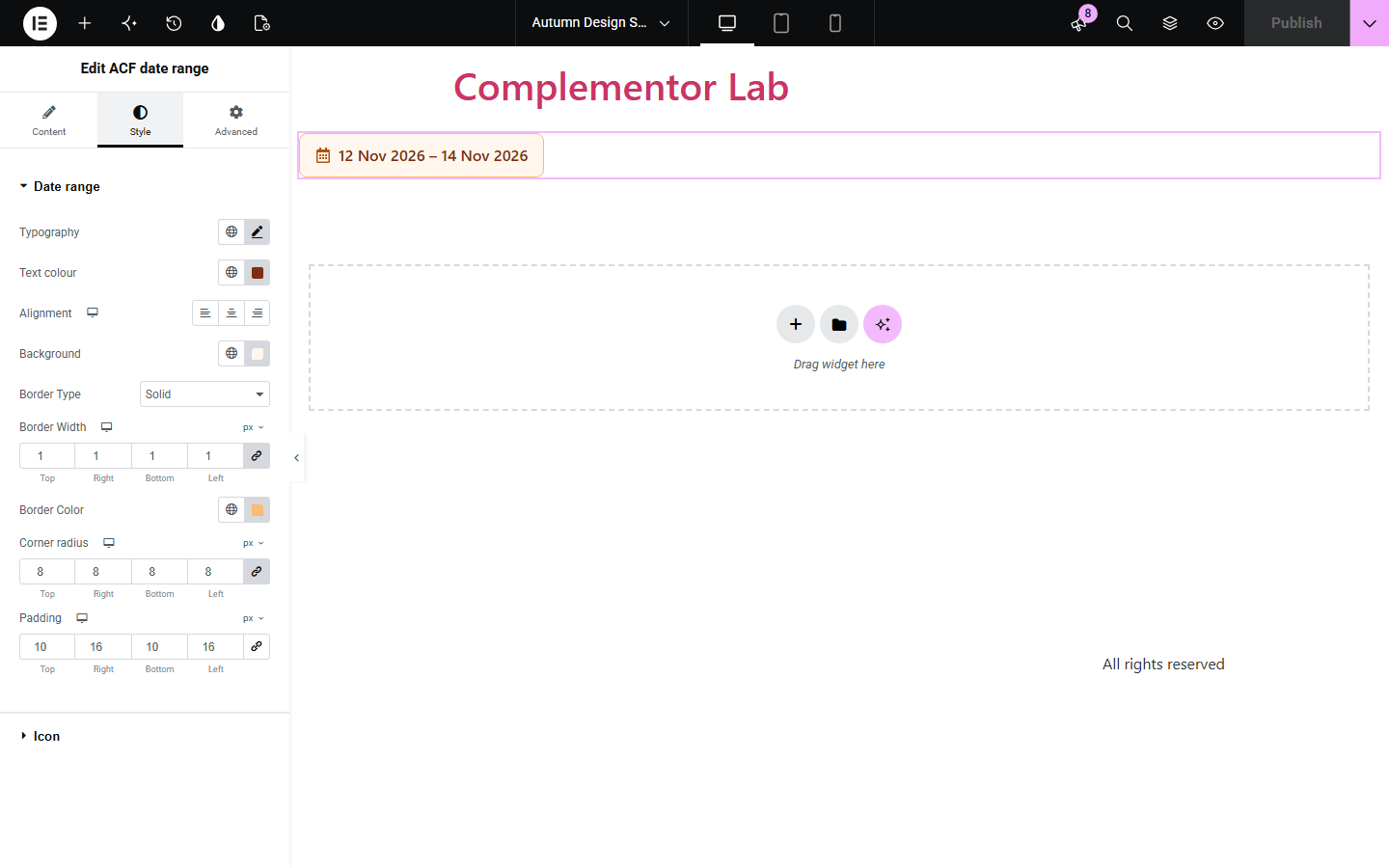
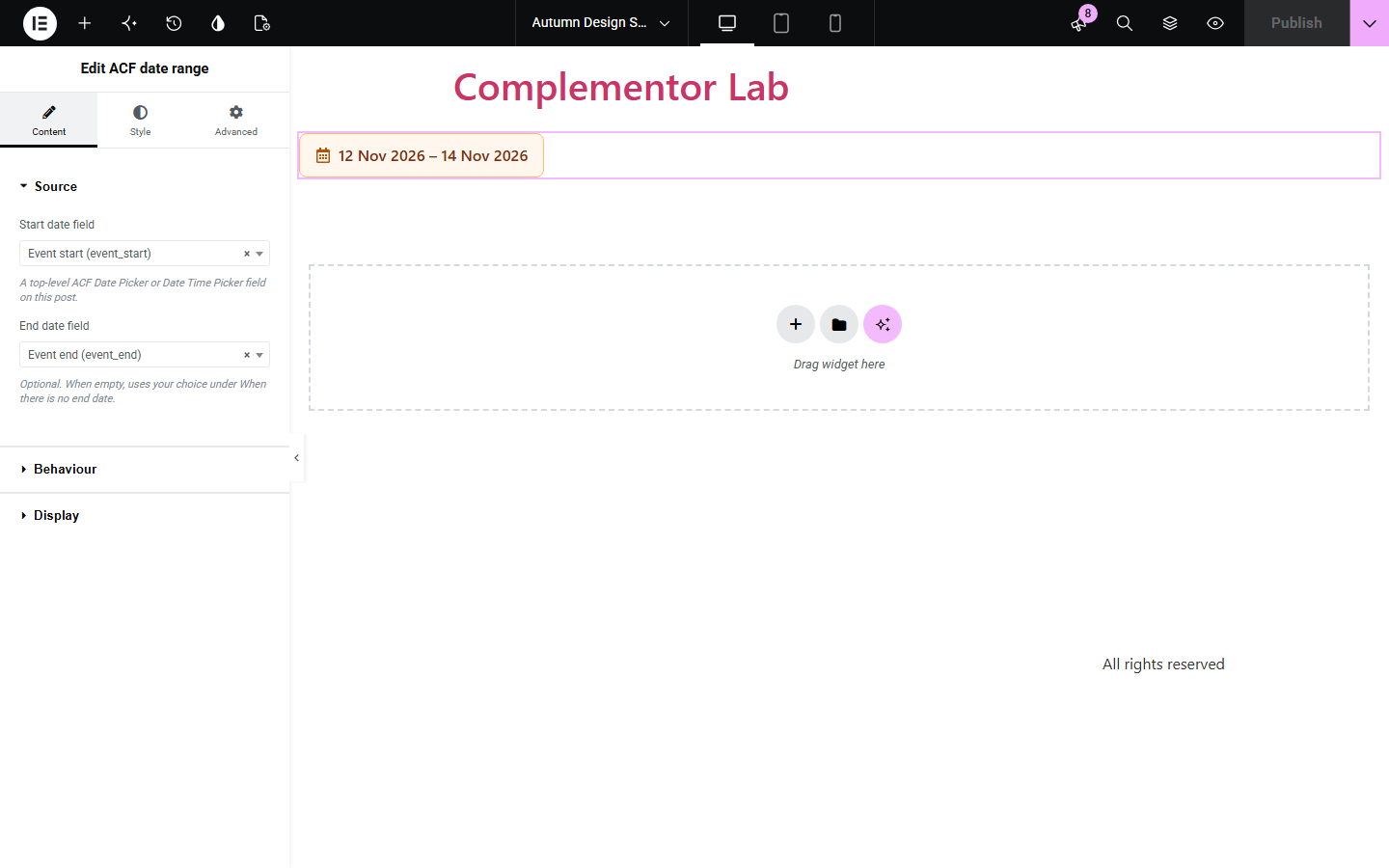
Content has three sections. Source picks the start field and an optional end field from the ACF Date Picker and Date Time Picker fields assigned to the post. Behaviour sets same-day handling, what happens without an end date, and the separator. Display chooses the site format or a custom PHP date format and an optional icon. The Style tab has a Date range section (typography, text colour, alignment, background, border, corner radius, padding) and an Icon section (colour, position, size, gap).
Event, course and project pages often keep a start date and an end date in Advanced Custom Fields. Showing them in Elementor usually means two separate dynamic values, a hand-typed dash and an odd result for one-day events. ACF date range reads both saved fields and prints one readable range.
Show a multi-day event as one range such as November 12, 2026 – November 14, 2026 from two Date Picker fields.
Show a one-day session with Date Time Picker fields as one date followed by its start and end time.
Show when an exhibition runs, when a project took place or until when an offer is valid, and simply show the start date while the end is not decided.
Start with Complementor installed and your license connected. Enable this module in the WordPress library, then configure it in Elementor.
Activate Advanced Custom Fields and Complementor, then enable ACF date range in the Complementor library in WordPress.
In ACF, add a field group with a Date Picker or Date Time Picker field for the start and one for the end, assign it to your post type and save dates on each post.
Open the post in Elementor and drag in the ACF date range widget. In an Elementor Pro single template, first set Preview Settings to a post that has these fields.
In Content, choose the start and end fields under Source, set same-day handling, the no-end-date rule and the separator under Behaviour, and pick the date format and optional icon under Display.
Style the range in the Style tab using the Date range and Icon sections, then publish and check both a one-day and a multi-day post.
Configure the settings available for this module to suit the page you are building.
Start and end field pickers that list only the top-level ACF Date Picker and Date Time Picker fields assigned to the post being edited.
Same-day ranges either show the date once (keeping both times for Date Time Picker fields) or show the start and end separately.
When the end date is missing, show the start date only or hide the widget; a missing start date always hides it on the published page.
An editable separator between the two dates, an en dash by default.
Site date and time formats from WordPress settings, or any custom PHP date format such as D j M or l j F Y.
Optional icon, a calendar by default, before or after the dates with responsive size and gap and its own colour.
Date range styling: typography, text colour, responsive alignment, background, border, corner radius and padding.
Each date is output in an HTML time element with a machine-readable datetime value.
Compare the existing Elementor workflow with this Complementor module before choosing your setup.
Elementor Pro can insert each ACF date into a Heading or Text Editor widget as a dynamic tag. Use it when you need a single date inside longer text. ACF date range combines both fields, collapses same-day ranges and handles a missing start or end date for you.
A developer can print the two dates in a PHP theme template with ACF's get_field(). Prefer this when you need durations, calendars, sorting or other logic; the widget keeps the range editable in Elementor without code.
Complementor uses classic Elementor APIs. Atomic-native controls are not implemented. Check your theme, cache and integrations on a staging site before release.
Check these settings if the published page behaves differently from the editor.
Only top-level Date Picker and Date Time Picker fields whose field group location rules include this post are listed. Fields inside a Group or Repeater are not supported. After adding a field group, reopen the Elementor editor. In an Elementor Pro single template, set Preview Settings to a post that has the fields.
The start field has no saved value on this post, or the end date is missing and When there is no end date is set to Hide the widget. Drafts, private and password-protected posts are never read on the public page. In the editor the widget shows a hint explaining which case applies.
Same-day range is set to Show the date once by default. With two Date Time Picker fields the date is shown once with both times. Choose Show start and end separately to print both endpoints in full.
The widget formats saved dates itself, using the date and time formats from Settings › General or the custom PHP date format in the Display section. The ACF display and return formats are not used.
The widget reads only values that are saved on the post. Edit and update the post in WordPress so ACF stores the date.
Top-level Date Picker and Date Time Picker fields saved on the current post or page. Other field types, sub-fields, options pages, users and terms are not listed.
Yes. On the published page it reads the dates of the post being viewed. In the template editor, set Preview Settings to a post that has the fields so the pickers and preview can use them.
Dates are read and formatted in the site time zone from Settings › General. They are not converted to each visitor's time zone.
No. It shows the saved start and end exactly as saved. It does not count days, sort reversed dates or create recurring events.
The range is plain text with each date in an HTML time element, and the optional icon is hidden from assistive technology. Text colour, background and typography are fully customisable in the Style tab.
This module is included with all 1007 current Complementor solutions. Choose your production website allowance; every plan includes the same modules.
Renews at $29 USD each year.
Renews at $49 USD each year.
Renews at $99 USD each year.
Applicable taxes extra. Annual subscriptions renew automatically unless canceled in your customer account. Elementor Pro is required for Exclude current post. Read the terms and 14-day technical-issue refund policy.