Mixed VAT products
Show which sizes are charged at a reduced rate.
 I Build Elementor.
Show the tax class of the WooCommerce variation a shopper picks, such as VAT: Reduced rate, with Varies by option before a choice.
These are the actual published outputs of the widget for a sample product. On a product page the value changes to the size the shopper picks.
Product chooses the current product, a selected variable product or one fixed variation, and what to show before a choice. Display sets the prefix, the standard class label, hiding the standard class, a label for untaxed products, the text when options differ and an optional icon. The Style tab covers typography, prefix and class colours, background, border, radius, spacing, alignment and the icon.
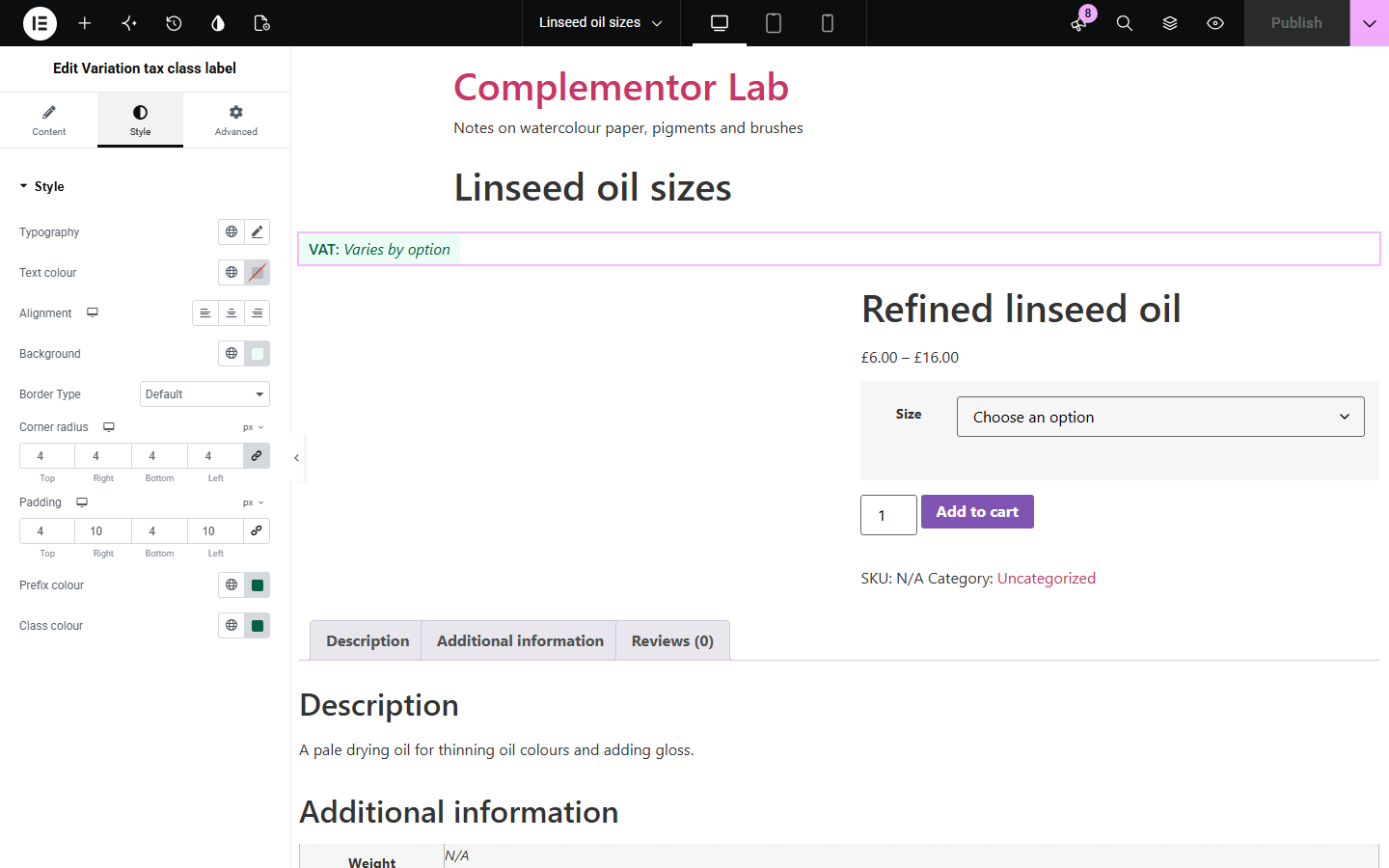
When different sizes or versions of a product are taxed differently, shoppers and business buyers want to know which rate applies. WooCommerce stores a tax class for each variation but never shows it. Variation tax class label shows the class name for the option the shopper picks, and says when it varies before they choose.
Show which sizes are charged at a reduced rate.
Give accountants the class each option falls under.
Explain why some options are zero or reduced rated.
Start with Complementor installed and your license connected. Enable this module in the WordPress library, then configure it in Elementor.
Install Complementor, connect your license and enable Variation tax class label in the Complementor library.
In WooCommerce, set each variation's tax class under Product data › Variations.
Add the widget to your single product template, or to a page that also shows the product's add-to-cart form, and choose the product in Product.
In Display, add a prefix such as VAT: and choose how the standard class and untaxed variations are labelled.
Style it, then pick options on the product page to check the class changes.
Configure the settings available for this module to suit the page you are building.
Follows the option the shopper picks on the product's options form, and returns when the choice is cleared.
Before a choice, the shared class, or Varies by option when classes differ.
Class names come from WooCommerce › Settings › Tax.
Label or hide the standard class, for example to show only reduced rates.
Optional label when the product's tax status is None.
Same as parent variations show the parent's class.
One fixed variation can be shown anywhere instead.
Compare the existing Elementor workflow with this Complementor module before choosing your setup.
Adds text such as inc. VAT after every price; it does not name the tax class.
Shows SKU, categories and tags; it does not show tax classes.
Complementor uses classic Elementor APIs. Atomic-native controls are not implemented. Check your theme, cache and integrations on a staging site before release.
Check these settings if the published page behaves differently from the editor.
The variation uses the default tax class. Rename that label, or hide it under Display.
Before a choice the options are in different classes. Edit or clear Text when options differ.
The standard class is hidden, or the product's tax status is None and Not taxed label is empty.
The product's options form must be on the same page, for example its own product page or a product shortcode.
No. It works with the free version of Elementor and WooCommerce.
No. It shows the class name you set up; rates and amounts depend on the customer's address.
No. It only reads the tax class and status of each variation.
Yes. Type any prefix, such as GST:, or leave it empty.
Only to follow the shopper's choice; without it the starting value is shown.
This module is included with all 1007 current Complementor solutions. Choose your production website allowance; every plan includes the same modules.
Renews at $29 USD each year.
Renews at $49 USD each year.
Renews at $99 USD each year.
Applicable taxes extra. Annual subscriptions renew automatically unless canceled in your customer account. Elementor Pro is required for Exclude current post. Read the terms and 14-day technical-issue refund policy.