Product templates
Explain the stock line next to Add to cart.
 I Build Elementor.
Explain how stock works in your WooCommerce store, from its inventory settings: when quantities show, sold-out items, backorders, back-in-stock emails and hold times.
These are the actual published widgets reading the demo store’s inventory settings.
Stock policy sets the heading and its tag, the texts for quantities shown always, only when low (with {amount} for your threshold) or never, which extra points show, a note or plain look, and an icon. The Style tab covers the text and surface, the icon, and the heading, accent, background and point colours with spacing.
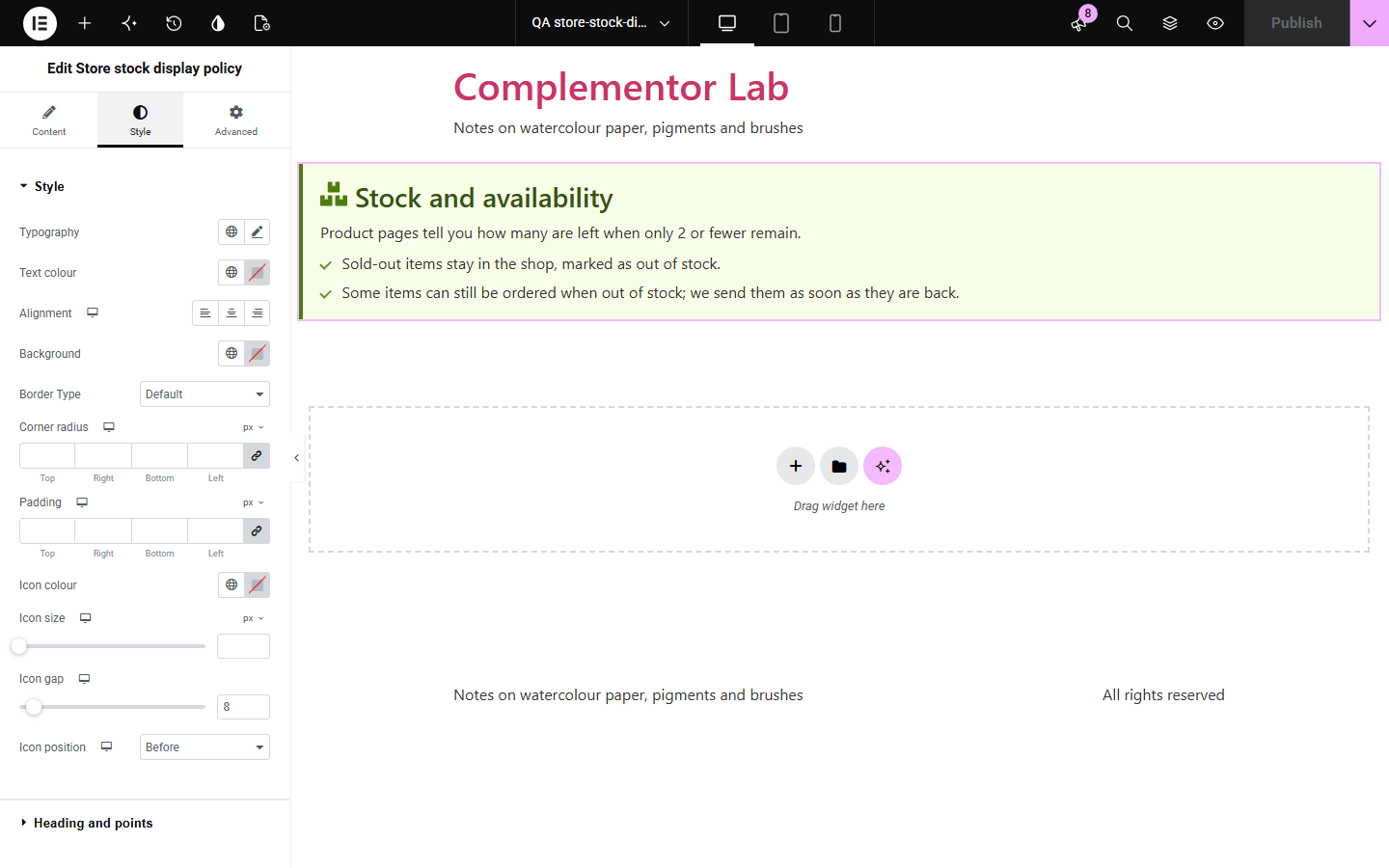
Shoppers wonder why a count appears on one product and not another, whether a sold-out item will come back and how long their basket is safe, and a hand-written note goes out of date. This note says, from WooCommerce’s inventory settings, whether product pages show how many are left always, only when low or never, and adds what applies about sold-out items, backorders, back-in-stock emails and how long unpaid orders hold stock. It never shows a product’s stock level.
Explain the stock line next to Add to cart.
Say that counts appear when few are left.
Answer “Will this come back in stock?”.
Start with Complementor installed and your license connected. Enable this module in the WordPress library, then configure it in Elementor.
Install WooCommerce and Complementor, connect your license and enable Store stock display policy in the Complementor library.
Check the options in WooCommerce › Settings › Products › Inventory.
Add the widget to the shop, a product template or an FAQ.
Choose the points and adjust the wording.
Style the note and its accent colour.
Configure the settings available for this module to suit the page you are building.
Whether product pages show quantities always, only when low or never.
Your low stock threshold in the wording.
Whether sold-out items stay in the shop.
Backorders, when any product allows them.
Back-in-stock emails, when WooCommerce’s sign-ups are on.
How long unpaid orders hold stock.
Compare the existing Elementor workflow with this Complementor module before choosing your setup.
How tax works on an order.
How buyers get downloadable files.
Complementor uses classic Elementor APIs. Atomic-native controls are not implemented. Check your theme, cache and integrations on a staging site before release.
Check these settings if the published page behaves differently from the editor.
No published product allows backorders.
WooCommerce’s back-in-stock sign-ups are off or not available in your WooCommerce version.
Stock management is off or the hold stock time is empty in the inventory settings.
No. It works with the free version of Elementor and WooCommerce.
No. It explains the policy; product pages show stock as WooCommerce is set to.
Yes. It reads them each time the page is built.
Yes. The heading and the three main texts are editable, with {amount} for your low stock threshold.
Yes. It uses a real heading and a list for the points.
This module is included with all 1007 current Complementor solutions. Choose your production website allowance; every plan includes the same modules.
Renews at $29 USD each year.
Renews at $49 USD each year.
Renews at $99 USD each year.
Applicable taxes extra. Annual subscriptions renew automatically unless canceled in your customer account. Elementor Pro is required for Exclude current post. Read the terms and 14-day technical-issue refund policy.