Shop sidebars
Let shoppers move between categories.
 I Build Elementor.
Add a navigation menu of WooCommerce product categories as a nested list, chips or image tiles, with product counts, the current category marked and Uncategorized left out.
These are the actual published widgets listing the demo store’s product categories.
Menu sets the heading and its tag, a list, chips or image tiles, nested subcategories or the top level only, the number of categories, the order (name, WooCommerce order or most products), counts, leaving out Uncategorized and empty categories, and an icon. The Style tab covers the text and surface, the icon, and the heading, link, hover and focus, current category and chip colours with spacing and tile width.
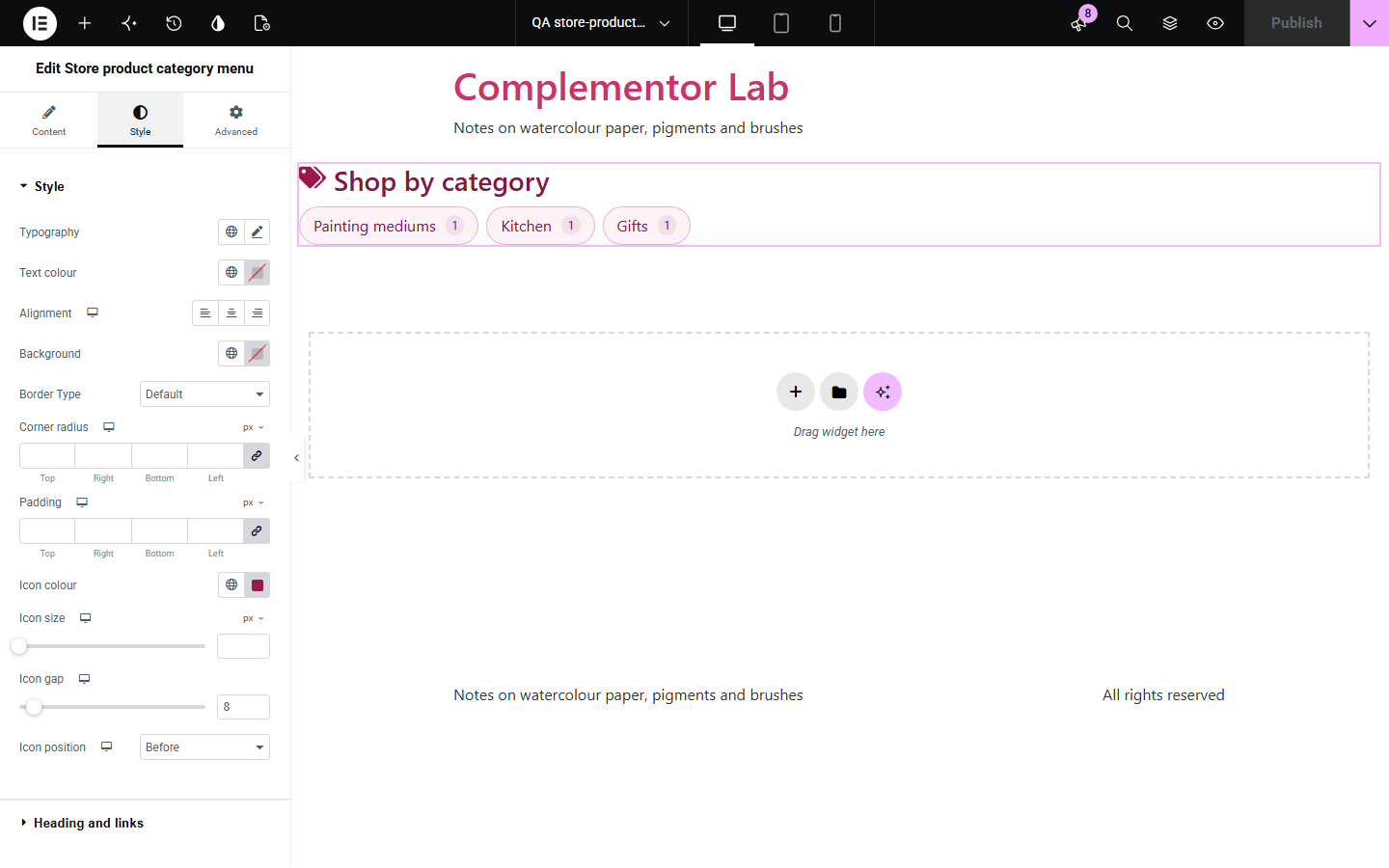
Shoppers browse by category, and a hand-built menu goes stale every time a category is added or renamed. Store product category menu lists the store’s product categories as they are, with subcategories nested under their parents, as a list, chips or image tiles, shows how many products each holds, marks the category being viewed, and leaves out the Uncategorized catch-all and empty categories.
Let shoppers move between categories.
Show category tiles with images.
A row of category chips under the navigation.
Start with Complementor installed and your license connected. Enable this module in the WordPress library, then configure it in Elementor.
Install WooCommerce and Complementor, connect your license and enable Store product category menu in the Complementor library.
Add the widget to the shop sidebar, a header area or the home page.
Choose a list, chips or image tiles and how many categories show.
Choose the order and whether counts and subcategories show.
Style the heading, links and current category.
Configure the settings available for this module to suit the page you are building.
A nested list, chips or image tiles with the category images.
Subcategories nested under their parent, or top level only.
Ordered by name, WooCommerce’s category order or most products.
Product counts, read out as “12 products” by screen readers.
The category being viewed, or the product’s categories, marked as current.
Uncategorized and empty categories left out.
Compare the existing Elementor workflow with this Complementor module before choosing your setup.
A link or button to the shop or a category.
A product search with suggestions.
Complementor uses classic Elementor APIs. Atomic-native controls are not implemented. Check your theme, cache and integrations on a staging site before release.
Check these settings if the published page behaves differently from the editor.
It is empty, it is the default Uncategorized category, or it is past the maximum number. Change these settings to include it.
The category has no image. Add one under Products › Categories.
Categories that were never dragged into order in Products › Categories follow those that were, by name.
No. It works with the free version of Elementor and WooCommerce.
Yes. It lists the store’s categories each time the page is built.
Yes. Choose image tiles to use each category’s image.
Yes. On a category page, or a product in that category, the link is marked as current.
Yes. It is a navigation landmark named by its heading, with real links and counts read out in words.
This module is included with all 1007 current Complementor solutions. Choose your production website allowance; every plan includes the same modules.
Renews at $29 USD each year.
Renews at $49 USD each year.
Renews at $99 USD each year.
Applicable taxes extra. Annual subscriptions renew automatically unless canceled in your customer account. Elementor Pro is required for Exclude current post. Read the terms and 14-day technical-issue refund policy.