International stores
Make the currency clear to visitors from abroad.
 I Build Elementor.
Show shoppers how prices look in your WooCommerce store: a sample price in your real currency format, the currency’s name and a note from your tax display settings.
These are the actual published widgets using the demo store’s currency and tax settings.
Price example sets the sample amount, the text before it, a sentence or a card, whether to name the currency and explain tax, and an icon. The Style tab covers the text and surface, the icon, and the example’s typography and colour, the currency and tax text colour, and the card’s background and border.
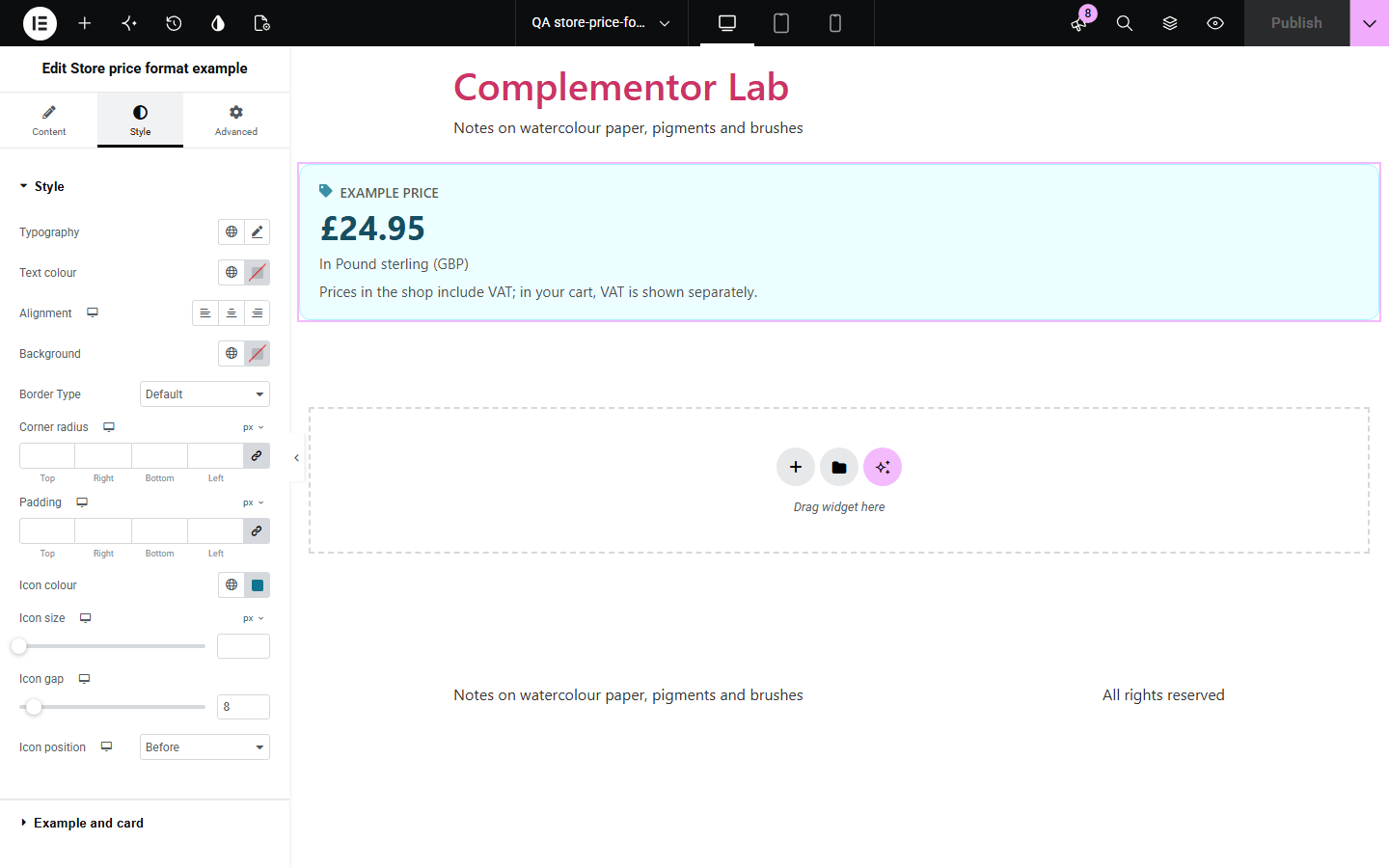
International shoppers want to know which currency they are paying in and whether tax is included before they reach checkout, and a typed example goes wrong when the store’s settings change. This widget formats a sample amount exactly as WooCommerce formats prices, names the currency and its code, and explains the tax display for the shop and the cart from your tax settings.
Make the currency clear to visitors from abroad.
Say whether prices include VAT.
Answer “Which currency do you charge in?”.
Start with Complementor installed and your license connected. Enable this module in the WordPress library, then configure it in Elementor.
Install WooCommerce and Complementor, connect your license and enable Store price format example in the Complementor library.
Check the currency options in WooCommerce › Settings › General and the tax display in WooCommerce › Settings › Tax.
Add the widget to the shop, an FAQ or an international shipping page.
Set a sample amount and choose a sentence or a card.
Style the example and the card.
Configure the settings available for this module to suit the page you are building.
A sample amount formatted with your currency, symbol position, separators and decimals.
The currency’s name and code.
Whether shop and cart prices include tax, from your tax settings.
VAT or tax wording that follows your store’s country.
A sentence or a card with a large example.
No tax note when taxes are off.
Compare the existing Elementor workflow with this Complementor module before choosing your setup.
Which countries you take orders from.
How discount codes work.
Complementor uses classic Elementor APIs. Atomic-native controls are not implemented. Check your theme, cache and integrations on a staging site before release.
Check these settings if the published page behaves differently from the editor.
Taxes are turned off in WooCommerce › Settings › General, or the tax note is turned off in the widget.
WooCommerce uses VAT for store countries in the EU and UK, and tax elsewhere.
The amount was empty or not a positive number, so the default sample is used.
No. It works with the free version of Elementor and WooCommerce.
Yes. It formats the sample each time the page is built.
No. It shows prices in your store’s currency.
No. It formats the sample amount you enter.
Yes. It is plain text that reads as a sentence, with the price in WooCommerce’s own price markup.
This module is included with all 1007 current Complementor solutions. Choose your production website allowance; every plan includes the same modules.
Renews at $29 USD each year.
Renews at $49 USD each year.
Renews at $99 USD each year.
Applicable taxes extra. Annual subscriptions renew automatically unless canceled in your customer account. Elementor Pro is required for Exclude current post. Read the terms and 14-day technical-issue refund policy.