International shoppers
Make clear which dollar, pound or euro prices are in.
 I Build Elementor.
Tell shoppers which currency your WooCommerce prices are in, with the code, symbol and name in your own wording, an example price and whether prices include tax.
These are the actual published widgets reading the demo store’s WooCommerce settings.
Label sets the text with {code}, {symbol}, {name} and {example}, an example price line and its amount, the tax note and its two texts, a text or badge look and an icon. The Style tab covers the text and surface, the icon, and the example and tax line colour.
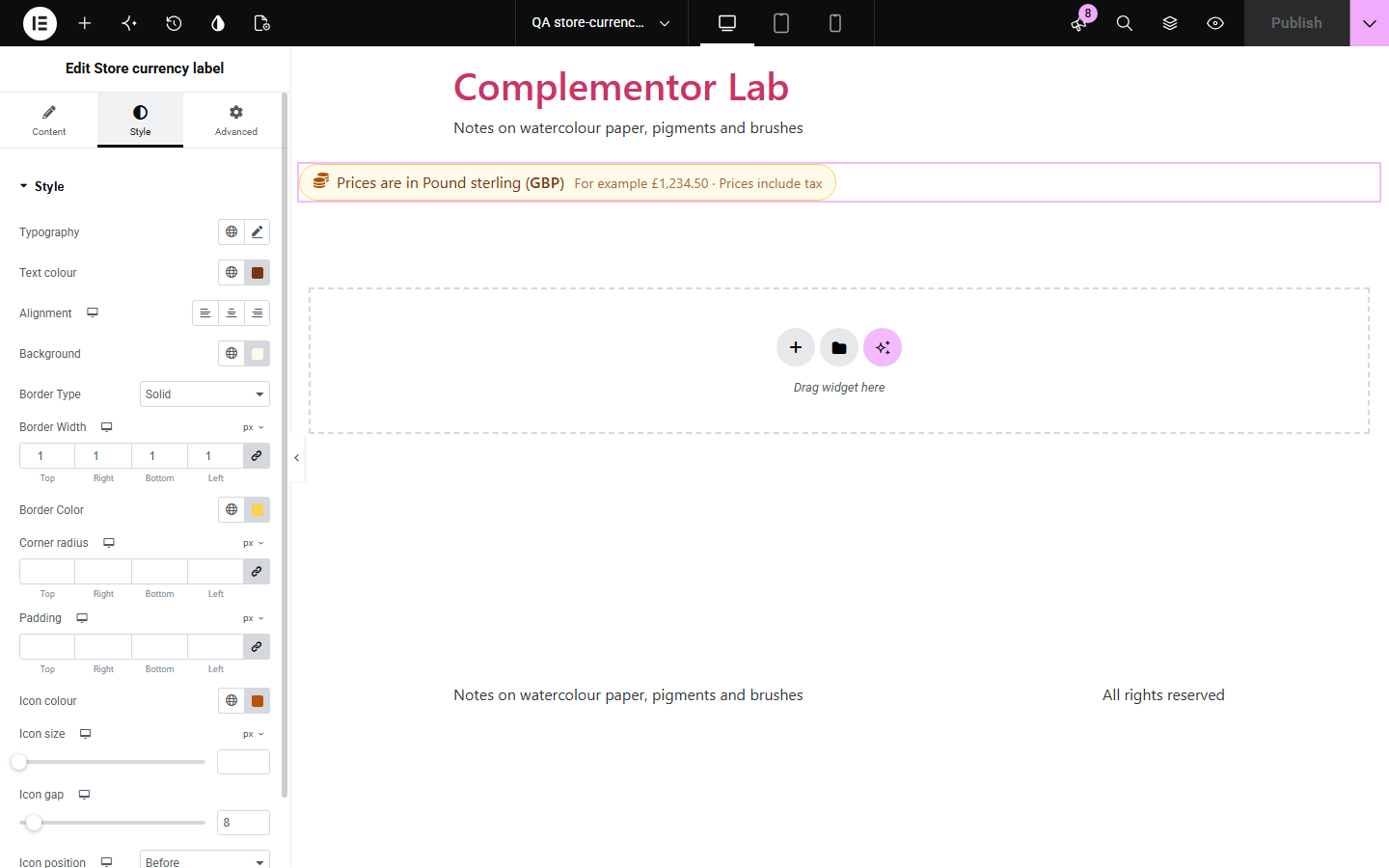
Shoppers from abroad often cannot tell whether a price symbol means dollars of one country or another, or whether tax is added at checkout, and that doubt costs sales. Store currency label states the store’s currency from WooCommerce’s own settings, with its name, code and symbol in your wording, an example price written the way the store writes prices, and whether shop prices include tax.
Make clear which dollar, pound or euro prices are in.
Say whether VAT or sales tax is already in the price.
Show a small currency badge near prices.
Start with Complementor installed and your license connected. Enable this module in the WordPress library, then configure it in Elementor.
Install WooCommerce and Complementor, connect your license and enable Store currency label in the Complementor library.
Check the currency and tax options in WooCommerce › Settings.
Add the widget to the shop, cart, header or pricing page.
Write the text with {name}, {code}, {symbol} or {example}.
Choose the example price and tax note, then style the label or badge.
Configure the settings available for this module to suit the page you are building.
The currency’s code, symbol and full name in your own wording.
The code marked up as an abbreviation of the full name.
An example price written in the store’s format.
Whether prices include or exclude tax, following WooCommerce’s shop display setting.
A text or badge look with an optional icon.
Follows currency switchers that change WooCommerce’s currency.
Compare the existing Elementor workflow with this Complementor module before choosing your setup.
Shows how far a basket is from free shipping.
Compares unit prices of offers.
Complementor uses classic Elementor APIs. Atomic-native controls are not implemented. Check your theme, cache and integrations on a staging site before release.
Check these settings if the published page behaves differently from the editor.
Taxes are turned off in WooCommerce › Settings, or the tax note is turned off in the widget.
The widget shows WooCommerce’s current currency. Switchers that change it through WooCommerce’s filters are followed; those that only convert prices on screen are not.
It uses the separators, decimals and symbol position set in WooCommerce › Settings › General.
No. It works with the free version of Elementor and WooCommerce.
From WooCommerce’s currency setting, including changes made by plugins through its filters.
Yes. Use {name}, {code}, {symbol} and {example} anywhere in the text.
No. It labels the store’s currency; it does not convert amounts.
Yes, when taxes are on: it follows WooCommerce’s setting for how prices are displayed in the shop.
This module is included with all 1007 current Complementor solutions. Choose your production website allowance; every plan includes the same modules.
Renews at $29 USD each year.
Renews at $49 USD each year.
Renews at $99 USD each year.
Applicable taxes extra. Annual subscriptions renew automatically unless canceled in your customer account. Elementor Pro is required for Exclude current post. Read the terms and 14-day technical-issue refund policy.