Site headers
Show a cart icon with a count in the header template.
 I Build Elementor.
Add a link or button to the WooCommerce cart with the number of items and the total, kept current in the browser through the store’s own Store API.
These are the actual published widgets; add a product to the demo store’s cart and the counts follow.
Link sets the text, the item count and total, what happens when the cart is empty, a button, text link or icon look, hiding on the cart and checkout, live updates and an icon. The Style tab covers the text and surface, the icon, and the link colours in normal, hover and focus with the count badge colours.
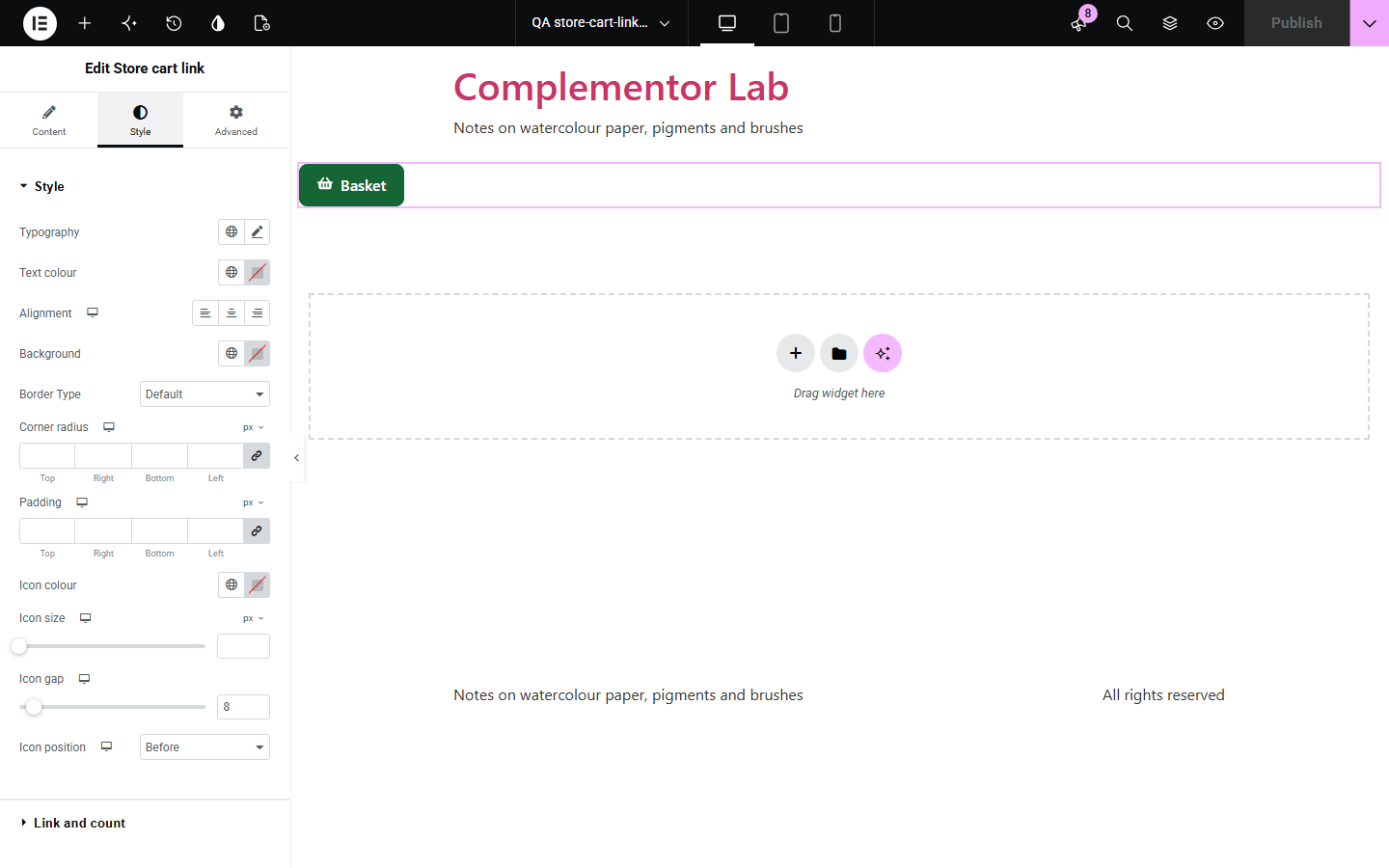
A cart link in the header is how shoppers find their way to checkout, but a count baked into a cached page is wrong for everyone else, and a link that only says Cart gives no sign that anything is in it. Store cart link always points at WooCommerce’s cart page, shows the number of items and the total as a badge, button or icon, asks the store’s own Store API for the visitor’s cart so cached pages are right, updates when items are added, and can change or hide itself when the cart is empty.
Show a cart icon with a count in the header template.
Show a checkout prompt once something is in the cart.
Show the running total next to the add-to-cart area.
Start with Complementor installed and your license connected. Enable this module in the WordPress library, then configure it in Elementor.
Install WooCommerce and Complementor, connect your license and enable Store cart link in the Complementor library.
Check that the cart page is set in WooCommerce › Settings › Advanced.
Add the widget to your header or menu area.
Choose a button, text link or icon, and whether to show the count and total.
Choose what shows when the cart is empty, then style the badge.
Configure the settings available for this module to suit the page you are building.
A link to WooCommerce’s current cart page.
The number of items as a badge and the cart total.
A button, a text link or an icon with a count badge.
Other text, or hiding, when the cart is empty.
Live updates from the store’s Store API after items are added or removed.
Hidden on the cart and checkout pages.
Compare the existing Elementor workflow with this Complementor module before choosing your setup.
A link or button to the shop or a category.
Shows how far a basket is from free shipping.
Complementor uses classic Elementor APIs. Atomic-native controls are not implemented. Check your theme, cache and integrations on a staging site before release.
Check these settings if the published page behaves differently from the editor.
Live updates listen for WooCommerce’s add-to-cart events and reload the count from the Store API. Themes that add items without those events update on the next page load.
The cart page is not set or not published, you are on the cart or checkout page, or the cart is empty and set to hide.
The editor uses your own cart on the site, which is usually empty.
No. It works with the free version of Elementor and WooCommerce.
Yes. The browser asks this site’s WooCommerce Store API for the visitor’s cart, so a cached page still shows the right count.
No. It only reads the cart from your own site’s Store API.
Yes. The link is named with its text, the number of items and the total for screen readers.
Yes. Choose to hide it or to show other text, such as Nothing in your basket yet.
This module is included with all 1007 current Complementor solutions. Choose your production website allowance; every plan includes the same modules.
Renews at $29 USD each year.
Renews at $49 USD each year.
Renews at $99 USD each year.
Applicable taxes extra. Annual subscriptions renew automatically unless canceled in your customer account. Elementor Pro is required for Exclude current post. Read the terms and 14-day technical-issue refund policy.