Limited stock
Show whether a larger order can ship now.
 I Build Elementor.
Answer “can I get this many?” from WooCommerce stock: all in stock, part on backorder or not enough, following the cart quantity and keeping counts private if you hide them.
These are the actual published widgets using the demo shop’s stock. Change the quantity to see the answer change.
Product picks the product being viewed or one by ID. Stock check sets the starting quantity, the quantity field, following the add-to-cart quantity and variation, and the texts for enough, some on backorder, all on backorder, not enough and hidden counts, and an icon. The Style tab covers the text, colour, alignment, background, border, radius and padding, the icon, and the in stock, backorder and not enough colours, status typography and field border.
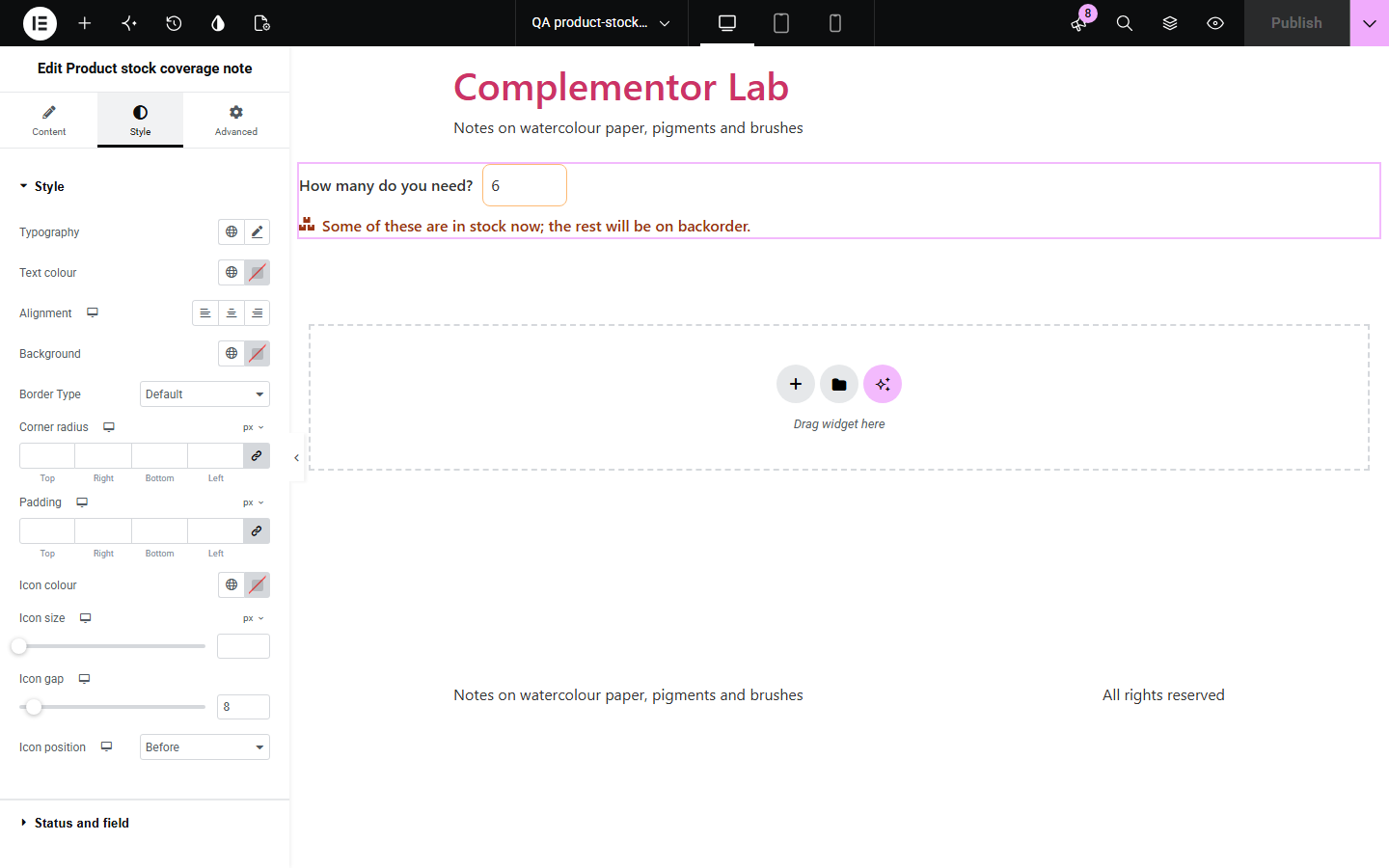
Shoppers ordering several of an item want to know whether they will all arrive together, and finding out at checkout is frustrating. This widget compares the quantity they choose, or the add-to-cart quantity and chosen variation, with WooCommerce stock and answers: all in stock, some now and the rest on backorder, all on backorder, or not enough. It follows your stock display setting, so a store that shows counts only when low, or never, does not reveal them here.
Show whether a larger order can ship now.
Say how many will follow later.
Let buyers check a case quantity.
Start with Complementor installed and your license connected. Enable this module in the WordPress library, then configure it in Elementor.
Install WooCommerce and Complementor, connect your license and enable Product stock coverage note in the Complementor library.
Turn on stock management for the product under Product data › Inventory.
Add the widget to your product template near the add-to-cart button.
Choose the starting quantity and whether it follows the add-to-cart quantity.
Edit the answers and their colours.
Configure the settings available for this module to suit the page you are building.
Can be sent now, part on backorder, all on backorder or not enough.
A quantity field, or the add-to-cart quantity.
The chosen variation’s stock.
Counts kept private when your store hides them.
Your own wording with {quantity}, {available} and {rest}.
A colour for each answer.
Compare the existing Elementor workflow with this Complementor module before choosing your setup.
How stock works in your store.
The total weight for a quantity.
Complementor uses classic Elementor APIs. Atomic-native controls are not implemented. Check your theme, cache and integrations on a staging site before release.
Check these settings if the published page behaves differently from the editor.
Your store shows stock counts only when low, or never, so the widget keeps them private too.
Stock management is off for the product, so the quantity in stock is unknown.
Following is off, or the page has no WooCommerce add-to-cart form.
No. It works with the free version of Elementor and WooCommerce.
No. It reads stock when the page loads; checkout confirms it.
Yes. It follows the chosen variation’s stock.
Only when your store’s stock display setting shows counts.
Yes. The field is labelled and the answer is announced as it changes, in words as well as colour.
This module is included with all 1007 current Complementor solutions. Choose your production website allowance; every plan includes the same modules.
Renews at $29 USD each year.
Renews at $49 USD each year.
Renews at $99 USD each year.
Applicable taxes extra. Annual subscriptions renew automatically unless canceled in your customer account. Elementor Pro is required for Exclude current post. Read the terms and 14-day technical-issue refund policy.