Mobile product pages
Point out photos below the fold.
 I Build Elementor.
Show how many photos a WooCommerce product has, such as “4 photos”, and optionally open the product gallery when it is clicked.
These are the actual published outputs of the widget for real WooCommerce products with four photos and one photo. Links point to a sample address here.
Content sets the product (the current one or a selected product), what to count, the texts for one, several and no photos, whether a click opens the gallery, and an optional icon. The Style tab covers typography, colour, alignment, background, border, radius and padding, plus icon colour, size, gap and position.
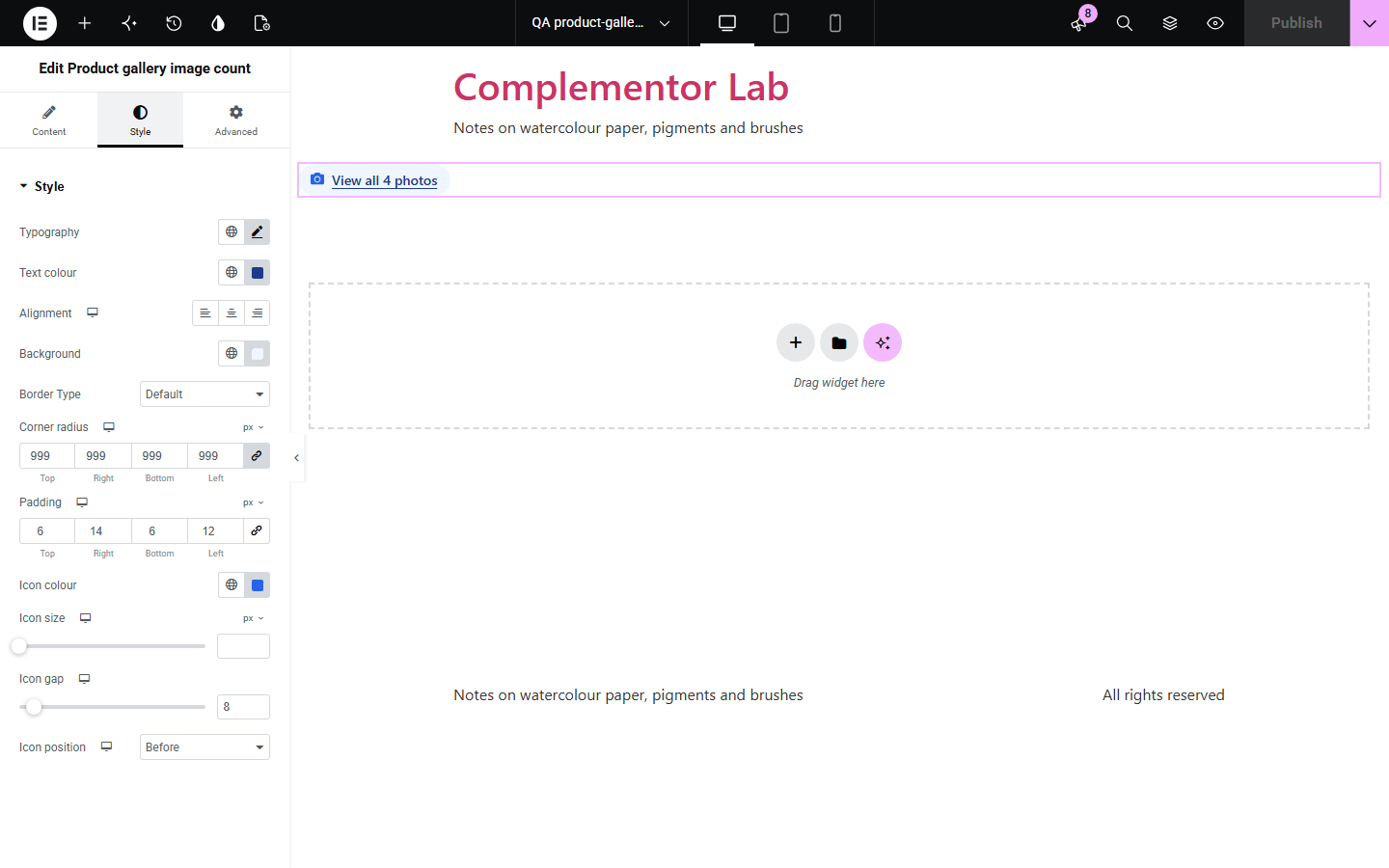
Shoppers often miss that a product has more photos than the one in view, especially on phones where gallery thumbnails sit below the fold. Product gallery image count says how many photos there are, counting the product image and gallery or only the extra images, and can open WooCommerce's own full-screen gallery when clicked. Missing or private images are never counted.
Point out photos below the fold.
Open the full-screen gallery from the summary.
Show how many photos a chosen product has.
Start with Complementor installed and your license connected. Enable this module in the WordPress library, then configure it in Elementor.
Install Complementor, connect your license and enable Product gallery image count in the Complementor library.
Add a product image and gallery images to your products.
Add the widget near the gallery in the product template, or choose a product.
Choose what to count and whether a click opens the gallery.
Style it and click it on a product page.
Configure the settings available for this module to suit the page you are building.
Counts all photos or gallery images only.
Texts for one, several and no photos.
Optional click to open the full-screen gallery.
Links to the product from other pages.
Skips missing or private images.
Style: typography, colour, surface, icon.
Compare the existing Elementor workflow with this Complementor module before choosing your setup.
Thumbnails are easy to miss and say nothing about the total.
Typed counts go out of date when images change.
Complementor uses classic Elementor APIs. Atomic-native controls are not implemented. Check your theme, cache and integrations on a staging site before release.
Check these settings if the published page behaves differently from the editor.
The product has no published photos. Fill in Text for none to show a text anyway.
It opens only on that product's own page. Elsewhere it links to the product.
Your theme has WooCommerce's gallery lightbox turned off.
No. Only the product image and its gallery images.
No. It works with the free version of Elementor and WooCommerce.
WooCommerce's own product gallery lightbox, at the first photo.
Yes. With the click action it is a real button that Enter opens, and Escape closes the gallery.
No. It only reads the images.
Only a small script for the optional gallery button.
This module is included with all 1007 current Complementor solutions. Choose your production website allowance; every plan includes the same modules.
Renews at $29 USD each year.
Renews at $49 USD each year.
Renews at $99 USD each year.
Applicable taxes extra. Annual subscriptions renew automatically unless canceled in your customer account. Elementor Pro is required for Exclude current post. Read the terms and 14-day technical-issue refund policy.