Product pages
Help shoppers jump to similar products in the same category.
 I Build Elementor.
Show a WooCommerce product's categories, linked to their shop pages, as an inline “Categories:” line, chips or a list.
These are the actual published outputs of the widget for real WooCommerce products with four, three and only the default category. Links point to a sample address here.
Content sets the product (the current one or a selected product), the layout (inline, chips or list), the separator, the prefixes for one and several categories, the maximum, whether to hide the default category, category links and an optional icon. The Style tab covers typography, colour, surface, prefix colour and weight, link and hover colour and underline, separator colour and the icon, plus a Chips section for text, background, hover, border, radius, padding and spacing.
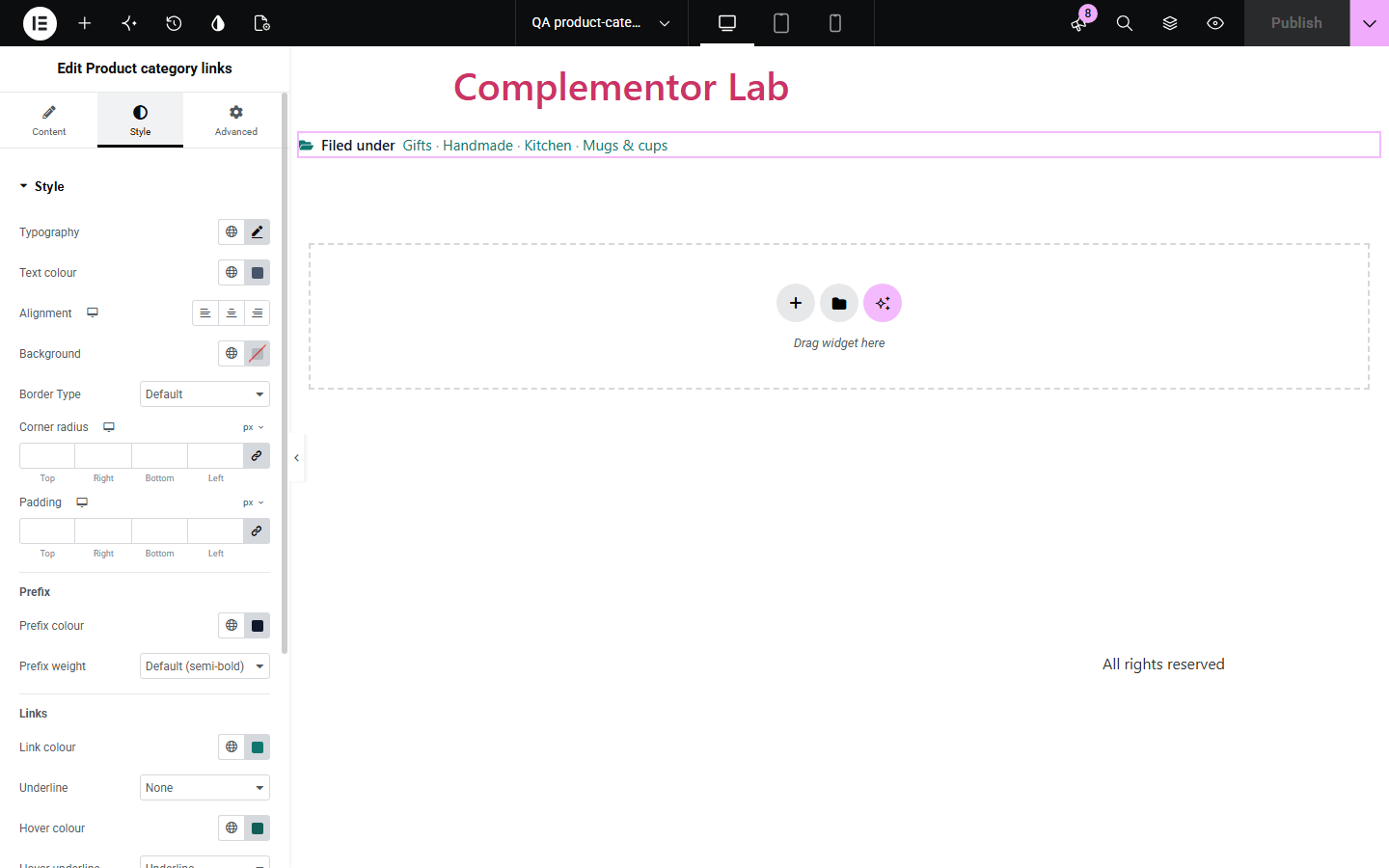
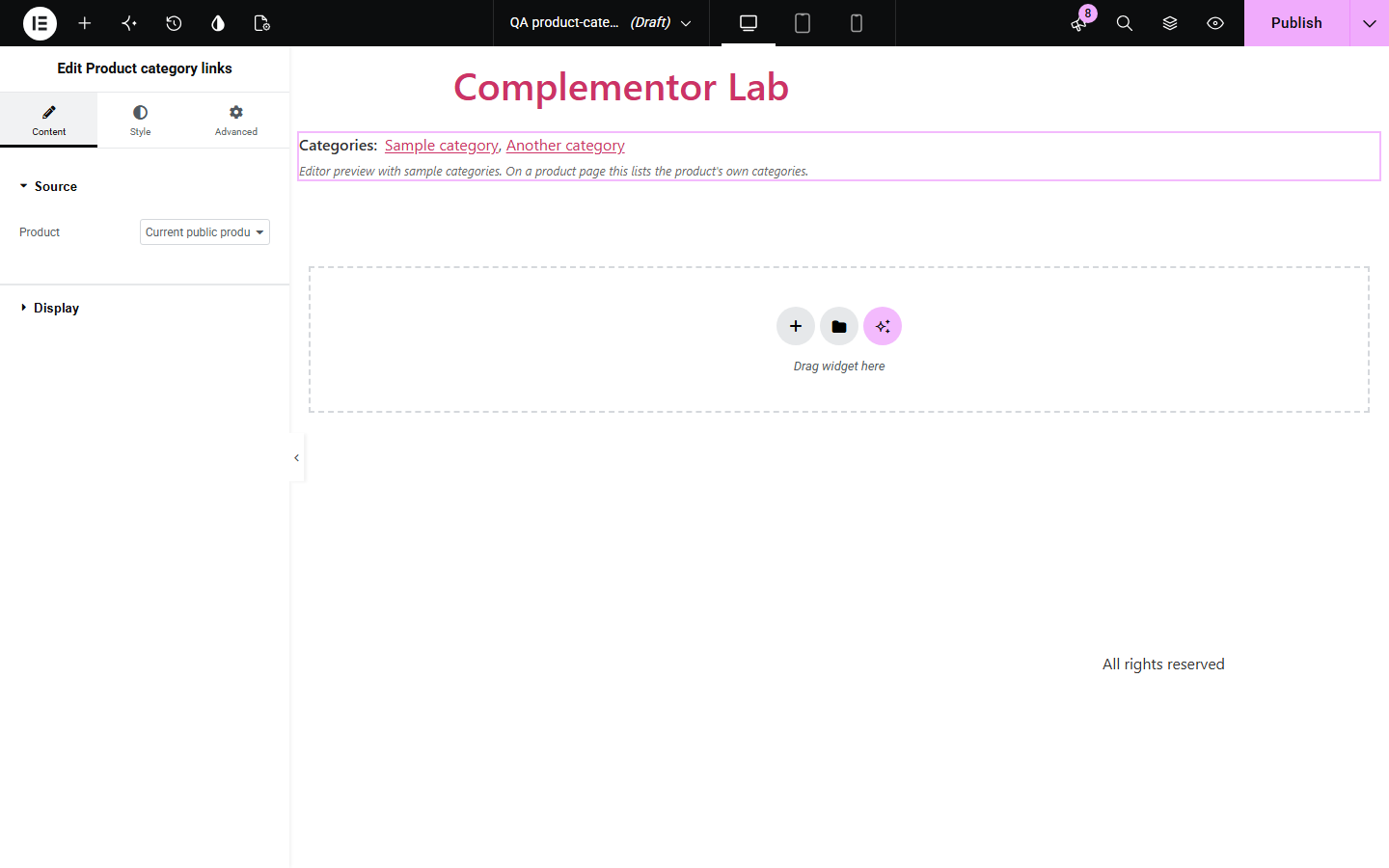
WooCommerce prints product categories only inside its product meta block, next to the SKU and tags, so you cannot place or style them on their own. Product category links shows just the categories of the current or a chosen product wherever you want, as a “Categories:” line, chips or a list, each linked to its category page, and skips the automatic “Uncategorized” category.
Help shoppers jump to similar products in the same category.
Place the category line under the title instead of in the product meta block.
Show a chosen product's categories on a landing page.
Start with Complementor installed and your license connected. Enable this module in the WordPress library, then configure it in Elementor.
Install Complementor, connect your license and enable Product category links in the Complementor library.
Assign categories to your products in the Product categories box in WooCommerce.
Add the widget to the product template, or choose a product under Source.
Under Display, pick inline, chips or list and adjust the prefixes and separator.
Style it on the Style tab and click a category on a product page.
Configure the settings available for this module to suit the page you are building.
Inline with commas or your own separator, chips or a bulleted list.
“Category:” or “Categories:” follows the count, or no prefix at all.
Each category links to its shop page; links can be turned off.
WooCommerce's automatic “Uncategorized” category is hidden by default.
Maximum number of categories, listed alphabetically.
Link colour and underline for normal and hover states, plus prefix and separator colour.
Chip colours, hover, border, radius, padding and spacing.
Compare the existing Elementor workflow with this Complementor module before choosing your setup.
The built-in meta block mixes categories with SKU and tags in one fixed block. Use it when that combined line is all you need.
Elementor Pro's Product Meta widget lists categories with SKU and tags. Prefer it when you already use Pro and want all three together.
Shows one category with its parents, such as Kitchen / Mugs & cups. Use it for a breadcrumb-like path instead of every assigned category.
Complementor uses classic Elementor APIs. Atomic-native controls are not implemented. Check your theme, cache and integrations on a staging site before release.
Check these settings if the published page behaves differently from the editor.
The product has no category besides WooCommerce's default “Uncategorized”, which is hidden. Assign a category, or turn off Hide the default category.
The page or template has no product while editing, so a sample shows your styling. On a product page it lists that product's categories.
The maximum is reached. Categories are listed alphabetically up to that number.
Both are assigned to the product. Remove the parent in the Product categories box if you only want the child.
No. It works with the free version of Elementor and WooCommerce.
To each category's WooCommerce page, which lists the products in that category.
Yes. With Current public product it shows the categories of the product being viewed.
Yes. Categories are normal underlined links with a visible focus outline, and the icon is hidden from screen readers.
No. It only reads the categories.
This module is included with all 1007 current Complementor solutions. Choose your production website allowance; every plan includes the same modules.
Renews at $29 USD each year.
Renews at $49 USD each year.
Renews at $99 USD each year.
Applicable taxes extra. Annual subscriptions renew automatically unless canceled in your customer account. Elementor Pro is required for Exclude current post. Read the terms and 14-day technical-issue refund policy.