Product pages
Offer More Kitchen pieces under the add-to-cart button.
 I Build Elementor.
Link from a WooCommerce product to a search for similar items or the listing of its category or tag, so shoppers find more to buy.
These are the actual published outputs of the widget for sample products. The links point to an example address.
Product chooses the current product or a selected one. Search sets what to search for (the name, first category, first tag or a typed term), the link text with {term} and {name}, a new-tab option and an optional icon. The Style tab covers typography, colours, background, border, radius, spacing, alignment, underline, link and hover colours, and the icon.
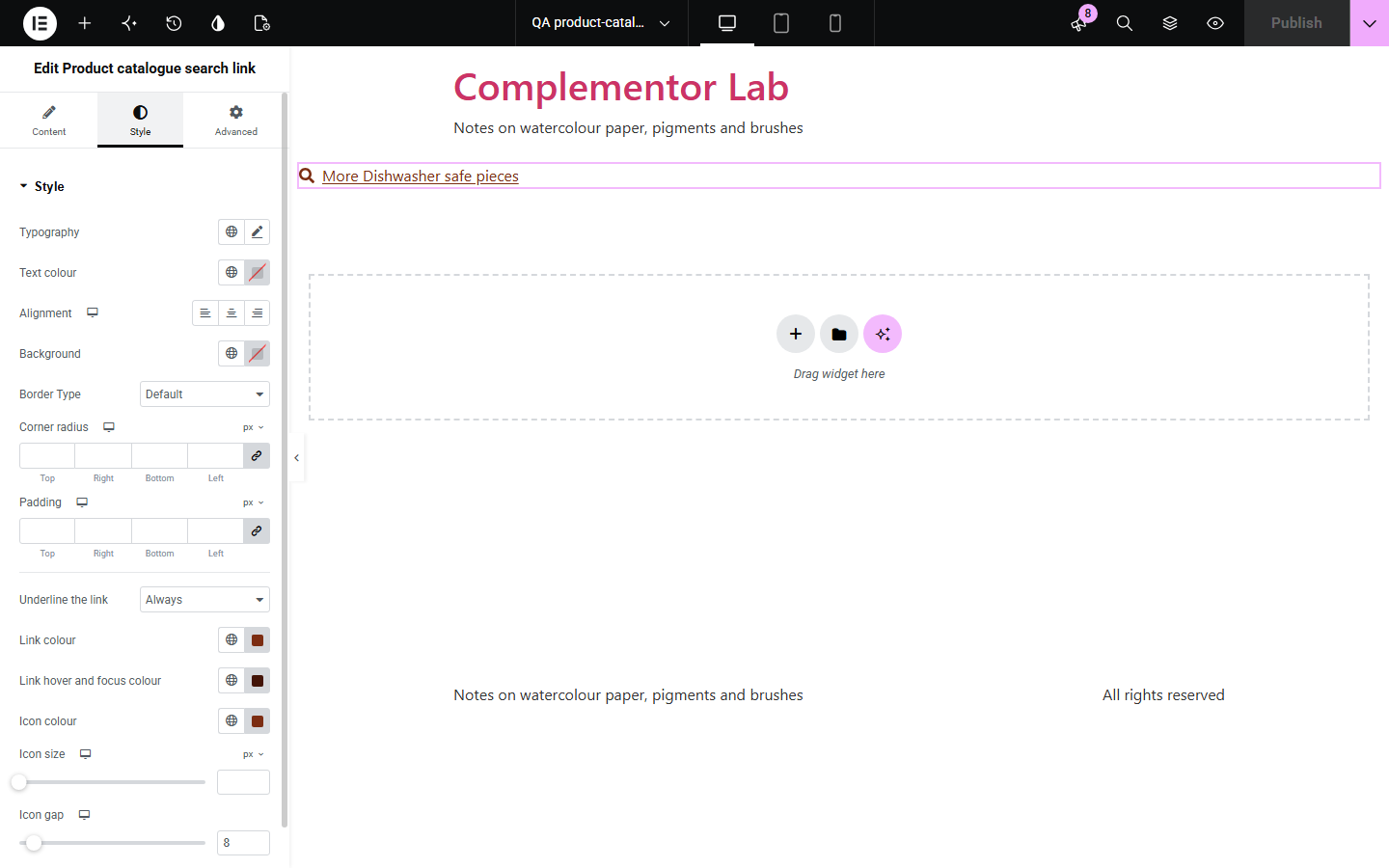
A shopper who likes a product often wants to see more like it, but the way to related items is usually a menu away. Product catalogue search link puts a clear link next to the product: to a search for its name or a term you choose, or straight to the listing of its category or tag.
Offer More Kitchen pieces under the add-to-cart button.
Link a hero product to its whole category.
Send readers from an article to a product search for a typed term.
Start with Complementor installed and your license connected. Enable this module in the WordPress library, then configure it in Elementor.
Install Complementor, connect your license and enable Product catalogue search link in the Complementor library.
Add the widget to a single product template, a product card or a landing page.
In Product, choose Current product or pick a selected product.
In Search, choose the name, first category, first tag or a typed term, and edit the link text.
Style the link on the Style tab, then follow it to check the results.
Configure the settings available for this module to suit the page you are building.
Search for the product name or a typed term, limited to products.
Link to the product listing of its first category or tag.
WooCommerce's default Uncategorized category is skipped.
Link text with {term} and {name}.
Underline always, on hover and focus, or never, with link and hover colours.
Optional icon, and an option to open in a new tab.
Draft, private and password-protected products are never used.
Compare the existing Elementor workflow with this Complementor module before choosing your setup.
Shows a grid of related items automatically; use this widget for a single, clear text link.
Fine for a fixed address, but it does not follow the product's name, category or tag.
Complementor uses classic Elementor APIs. Atomic-native controls are not implemented. Check your theme, cache and integrations on a staging site before release.
Check these settings if the published page behaves differently from the editor.
When a search finds only one product, WooCommerce opens it directly. Link to a category or tag to show a listing.
The product is only in Uncategorized, which is skipped. Add it to a real category.
WordPress search does not match category or tag names, so these link to the category or tag listing instead.
No public product is selected or current, or the typed term is empty.
No. It works with the free version of Elementor and WooCommerce.
No. Nothing is searched until the shopper follows the link.
Yes. Edit the link text; {term} and {name} are replaced.
Yes. Choose A term I type and enter the search term.
Yes. The link is reachable with Tab, shows a focus outline and opens with Enter.
This module is included with all 1007 current Complementor solutions. Choose your production website allowance; every plan includes the same modules.
Renews at $29 USD each year.
Renews at $49 USD each year.
Renews at $99 USD each year.
Applicable taxes extra. Annual subscriptions renew automatically unless canceled in your customer account. Elementor Pro is required for Exclude current post. Read the terms and 14-day technical-issue refund policy.